
Published on June 10, 2026
If you’re running HubSpot as your CRM and Mailchimp for email marketing, this guide walks you through how to connect them correctly. For a broader look at how this fits into your stack, see our automation integration services or request a free business process audit.
Quick Answer: The HubSpot Mailchimp integration syncs contacts between your CRM and email platform — but the native connector only supports one-way sync by default, and it breaks predictably at list segmentation, field mapping mismatches, and merge tag conflicts. For reliable two-way sync with automation logic, most teams need a middleware layer (Zapier, n8n, or Make) on top of the native connection, or a fully custom workflow that handles field validation before the sync fires.
Table of Contents
- What the Native HubSpot Mailchimp Integration Actually Does
- How to Connect HubSpot and Mailchimp (Step-by-Step)
- Where the Sync Breaks — and Why
- Two-Way Sync: What It Takes to Make It Work
- When to Replace the Native Integration with a Custom Workflow
- HubSpot Native Email vs. Mailchimp: The Stack Decision
- Final Answer
- FAQs
Most teams set up the HubSpot Mailchimp integration expecting it to behave like a live bridge between their CRM and email platform. What they get instead is a conditional sync that runs on a delay, obeys a specific field hierarchy, and stops working silently when a contact record hits a data conflict. This guide covers the setup, the failure points, and when a custom automation layer is the right call.
What the Native HubSpot Mailchimp Integration Actually Does
Before walking through the setup, it helps to understand what the native connector is — and what it isn’t. If you’re still evaluating HubSpot as your CRM platform, our HubSpot platform guide covers its broader capabilities beyond email integrations. HubSpot’s Mailchimp integration is built primarily as a contact export and list sync tool. It is not a real-time bidirectional data layer. It pushes contacts from HubSpot into a Mailchimp audience based on a list or segment you define, and it can pull back Mailchimp activity data (opens, clicks, unsubscribes) into HubSpot contact records.
What it does not do natively: update a HubSpot contact when a Mailchimp field changes, sync custom properties outside of a mapped field set, or handle contacts that exist in Mailchimp but not yet in HubSpot. That gap — contacts flowing the wrong direction, or not flowing at all — is where most integration problems begin.
The sync also runs on a schedule rather than in real time. According to HubSpot’s Mailchimp integration documentation, sync activity is processed on scheduled intervals rather than instantly. That means there can be a meaningful lag between a contact being created or updated in HubSpot and that record appearing in Mailchimp. For time-sensitive onboarding sequences or event-triggered emails, that lag matters. Understanding this constraint upfront prevents teams from designing automation flows that depend on immediacy the native connector can’t provide.
Many teams assume this kind of synchronization is standard CRM functionality, but it falls under a broader category of what CRM automation actually means — using workflows, integrations, and system rules to keep customer data aligned across platforms.
The native data flow is illustrated below. Notice that contact data primarily moves from HubSpot into Mailchimp, while engagement activity flows back into HubSpot rather than creating true bidirectional record synchronization.

How to Connect HubSpot and Mailchimp (Step-by-Step)
The native integration is managed from HubSpot’s App Marketplace. Here’s the standard setup sequence:
- Install the Mailchimp integration from HubSpot’s App Marketplace. You’ll need admin access to both platforms.
- Authenticate with your Mailchimp account using API key or OAuth. OAuth is preferred since it scopes permissions correctly and doesn’t break on key rotation.
- Select the Mailchimp audience you want to sync to. HubSpot’s integration documentation is structured around connecting a single Mailchimp audience per integration configuration. If you have multiple audiences, you’ll typically need separate configurations.
- Define the HubSpot list or segment that controls which contacts get pushed. This is the most important decision in setup — contacts outside this list will not sync, even if they exist in HubSpot.
- Map your fields. At minimum: email address, first name, last name. Any custom Mailchimp merge tags need to be manually mapped to corresponding HubSpot properties. Unmapped fields will not sync.
- Configure sync direction and triggers. Decide whether you want contact activity from Mailchimp (opens, clicks) to write back to HubSpot. Enable this under the sync settings if yes.
- Run an initial sync and validate against a small test segment before enabling for your full list.
The setup itself is straightforward. Where teams run into problems is not in the connection — it’s in what happens after, when real contact data hits the field mapping rules and edge cases appear.
The connection sequence itself is relatively simple. The setup flow below shows the order of decisions that determine whether the integration behaves correctly after launch.

If you’re setting this up for a team with multiple lists, custom properties, or an active CRM already in use, our CRM automation service covers HubSpot integrations as part of a structured implementation.
Where the Sync Breaks — and Why
The most common failure pattern isn’t a connection error — it’s a silent data mismatch that passes validation but produces wrong results. Here’s where it happens consistently.
Field mapping collisions. Mailchimp’s merge tags have character limits and formatting rules that HubSpot properties don’t enforce. A phone number field stored as +63 917 123 4567 in HubSpot will fail silently when pushed to a Mailchimp merge tag expecting a 10-digit format. The contact appears to sync, but the field is blank in Mailchimp. In implementations we’ve built for B2B sales teams, this is the single most common reason a CRM property “disappears” after sync — the format didn’t match, and Mailchimp dropped it without error.
List membership logic. If a contact is removed from the HubSpot list driving the sync, the native integration does not automatically archive or unsubscribe them in Mailchimp. They stay in the Mailchimp audience indefinitely. This creates list inflation and deliverability problems over time — you’re emailing contacts who have churned, unqualified, or been removed from CRM for a reason.
Unsubscribe conflicts. When a contact unsubscribes in Mailchimp, that status can write back to HubSpot if opt-out synchronization is configured correctly and the contact’s email address matches across both systems. HubSpot documents that marketing opt-out status is tied to the email address itself rather than the contact record, which is why email consistency matters in these workflows (source). If there’s a capitalization difference, a secondary email alias, or a domain redirect involved, the match can fail and the unsubscribe may not propagate as expected. That’s a compliance risk, not just a data quality problem.
Duplicate records. If a contact exists in Mailchimp under one email and HubSpot under a slightly different one (common after imports, manual CRM data entry problems, or CRM migrations), the native sync will create a second record rather than merge. This compounds quickly in high-volume list environments. For a deeper look at how this affects CRM data quality more broadly, the CRM data cleanup strategies guide covers the detection and resolution patterns we see most often.
The four failure patterns below account for most production sync issues teams encounter after the integration is deployed.

Two-Way Sync: What It Takes to Make It Work
Two-way sync between HubSpot and Mailchimp is the stated goal for most teams — changes in either platform should reflect in the other. The native integration gets partway there: it can return engagement data from Mailchimp back into HubSpot. But it doesn’t handle bidirectional field updates, contact creation originating from Mailchimp, or real-time triggers on either side.
Making two-way sync reliable requires a defined conflict resolution rule. When a contact’s email preferences are updated in both systems within the same sync window, which one wins? Without an explicit rule — usually “last updated timestamp wins” or “the platform closest to the contact owns the record” — the sync will produce unpredictable results. Most teams don’t define this until after they’ve experienced a data conflict, at which point the damage is already in the database.
These governance decisions are part of broader CRM automation architecture. Without clear ownership rules, even technically successful integrations can create inconsistent records across systems.
The teams that implement this cleanly typically do one of two things: they designate HubSpot as the system of record and treat Mailchimp as a downstream output, accepting that updates to Mailchimp fields won’t flow back; or they build a middleware workflow that handles the sync logic explicitly. That second path is where tools like n8n or Zapier come in — not to replace the native integration, but to add validation, deduplication, directional rules, and automated CRM update workflows on top of it.
For the specifics of building that sync layer with n8n, the n8n HubSpot integration guide covers the workflow structure, including how to handle contact lookups and field update logic without creating duplicates.
A consistent pattern we see in this setup: teams that build two-way sync without a conflict rule end up with a hybrid state — HubSpot and Mailchimp that mostly agree, but diverge on enough contacts to make neither list trustworthy. That state is harder to fix than starting with a clear system-of-record decision would have been.
The architecture below illustrates why a middleware layer becomes necessary once both platforms are allowed to update the same contact record.

When to Replace the Native Integration with a Custom Workflow
Two situations consistently push teams past the native integration’s ceiling.
The first is segmentation complexity. The native integration maps one HubSpot list to one Mailchimp audience. If your email strategy requires syncing multiple segments, routing contacts across audiences based on lifecycle stage or deal property, or triggering Mailchimp sequences based on CRM events, the native connector won’t support that architecture. You need a workflow layer that can evaluate a contact record and route it conditionally. This is a common requirement in larger contact synchronization workflows where multiple systems need to stay aligned.
The second is volume combined with custom fields. At low contact counts, the native integration’s limitations are manageable — a missed field here, a sync delay there. At several thousand contacts with non-standard properties, those edge cases compound. A field mapping error that affects 2% of contacts isn’t a rounding error when 2% is 200 people removed from a critical nurture sequence.
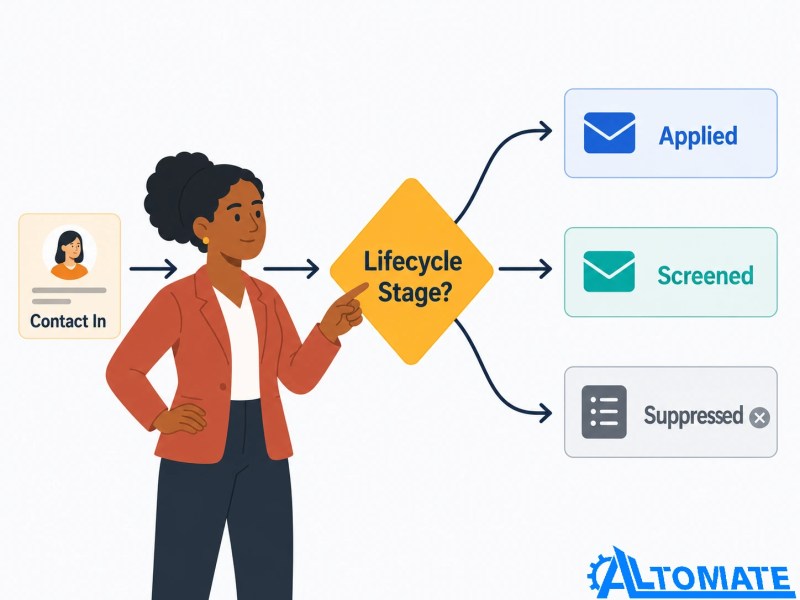
In one implementation we built for a recruitment firm running high-volume candidate outreach, the native HubSpot Mailchimp sync was dropping candidates who moved from “applied” to “screened” in HubSpot because the list membership logic hadn’t accounted for that status transition. The fix wasn’t reconfiguring the native integration — it was replacing it with an n8n workflow that evaluated lifecycle stage explicitly before deciding whether to sync, update, or suppress the contact in Mailchimp. That approach gave the team full control over which contacts entered which sequences and when. You can see a related example of how we’ve handled CRM and automation logic for recruitment clients in the recruitment lead generation automation case study.
If your stack involves a Mailchimp automation workflow — triggered sequences, behavioral branching, re-engagement logic — a custom middleware layer also gives you the ability to pass structured data into Mailchimp tags and merge fields from HubSpot, rather than relying on whatever the native sync pushes through.
For teams that don’t want to build and maintain that middleware layer internally, working with an implementation partner can significantly reduce deployment risk. HubSpot maintains a directory of verified solution providers, and Alltomate’s HubSpot Solutions Partner profile outlines the types of CRM integration, automation, and contact synchronization projects the team supports.
This routing logic is typically implemented through middleware workflows that evaluate CRM data before deciding which audience, sequence, or suppression path a contact should follow.
HubSpot Native Email vs. Mailchimp: The Stack Decision
This is worth addressing because it affects whether an integration makes sense at all. HubSpot has its own email marketing tools built in — Marketing Hub includes list-based sending, automation sequences, and reporting natively. Teams running both HubSpot email and Mailchimp in parallel are usually doing so for a reason: Mailchimp is managed by a different team, there’s a legacy audience that lives there, or Mailchimp’s template tooling is preferred for specific campaigns.
If neither of those constraints applies — if you’re starting fresh or consolidating — the cleaner architecture for most CRM-first teams is to run HubSpot email natively and skip the integration entirely. Native sending eliminates the sync layer, keeps contact data in one place, and allows automation sequences to trigger directly off CRM properties without middleware. The integration earns its complexity when Mailchimp is the better tool for a specific use case (transactional email, e-commerce sequences, brand-controlled campaigns) and HubSpot is the authoritative CRM. That combination justifies the sync work.
For teams unsure whether their current stack is structured correctly, the automation audit checklist covers the diagnostic questions worth working through before adding another integration layer.
Final Answer: The HubSpot Mailchimp integration works reliably for basic contact sync when field mappings are clean and list logic is simple. It breaks predictably at two-way sync requirements, custom field formats, and segmentation complexity. Most production implementations that need accurate, conditional, bidirectional sync require a middleware layer — n8n, Zapier, or Make — to handle conflict resolution, field validation, and routing logic the native connector doesn’t support. Define your system of record before you sync, map every field before you go live, and validate against a test segment before enabling for your full list.
Need a reliable system?
Get a free business process audit — we’ll review your current HubSpot and Mailchimp setup and identify where the sync is failing or likely to.
Related Resources
- HubSpot Platform Guide
- CRM Automation Guide
- n8n HubSpot Integration — Workflow Structure and Field Logic
- How to Sync CRM Systems — Patterns and Failure Modes
- Automate Contact Sync — Solution Overview
- CRM Data Cleanup Strategies
- CRM Migration and Sales Automation — Case Study
- Free Automation Audit Checklist
FAQs
Does HubSpot Mailchimp integration support real-time sync?
No. The native integration runs on a scheduled sync, not in real time. Sync frequency depends on your HubSpot plan. For event-triggered or time-sensitive workflows, a middleware layer with webhook-based triggers is required.
Why are my custom HubSpot properties not appearing in Mailchimp after sync?
Custom properties must be explicitly mapped to Mailchimp merge tags before the sync runs. Any property not included in the field mapping is silently excluded. Check your field mapping configuration and ensure the merge tag type in Mailchimp matches the format of the HubSpot property.
What happens to Mailchimp contacts when they’re removed from the syncing HubSpot list?
By default, removing a contact from the HubSpot list does not archive or unsubscribe them in Mailchimp. They remain in the Mailchimp audience. You need to configure explicit removal logic — either through the native settings or a middleware workflow — if you want removals to propagate.
Can I sync multiple HubSpot lists to multiple Mailchimp audiences?
Not with a single native integration instance. Each integration maps to one Mailchimp audience. Syncing multiple segments to separate audiences requires either multiple integration configurations or a custom workflow that routes contacts conditionally.
Does an unsubscribe in Mailchimp automatically update the contact in HubSpot?
It can, if opt-out sync is enabled and the email address matches exactly across both systems. If there’s a formatting difference or the contact has multiple email records, the match can fail and the unsubscribe won’t propagate. For compliance-critical workflows, verify this behavior with a test contact before relying on it.
When should I use n8n instead of the native HubSpot Mailchimp integration?
When you need conditional routing across multiple audiences, custom field validation before sync, real-time triggers, or reliable two-way sync with explicit conflict resolution rules. The native connector works for simple list-to-audience sync. n8n (or equivalent middleware) is appropriate when the sync needs to behave like a logic layer, not just a pipe.
About the author

Miguel Carlos Arao is the Founder & CEO of Alltomate, a Zapier Certified Platinum Solution Partner focused on HubSpot Mailchimp integration systems, including contact field mapping, two-way sync architecture, and CRM-to-email platform data routing. The patterns in this article come directly from building and troubleshooting HubSpot Mailchimp integration-related systems across client engagements in B2B sales automation and recruitment outreach.

Built by a certified Zapier automation partner
Explore more at
CRM automation services,
n8n HubSpot integration guide, and
CRM migration case study.