
Published on May 19, 2026
If you are evaluating how automation fits into your operations, see our Zapier workflow automation solutions or join the free business process audit waitlist.
Quick Answer: Practical Zapier automation examples include capturing leads in a CRM, updating reporting data, preparing documents, assigning team tasks, and sending customer notifications. Each connects a trigger to one or more actions. Before publishing, verify the field mappings, required data, duplicate handling, and exception routes. The examples below show what to automate and the checks each workflow needs.
Table of Contents
- What Makes a Zapier Workflow Actually Work
- Lead and Sales Automation Examples
- CRM and Data Entry Automation Examples
- Document and Invoice Automation Examples
- Internal Notification and Team Handoff Examples
- Support and Customer Communication Examples
- Where Zapier Automation Commonly Breaks
- Final Answer
- FAQs
A form-to-spreadsheet connection or a Slack message after a deal closes can be a useful first automation. Turning it into a dependable business process takes more than a successful test: the workflow also needs to handle incomplete data, duplicate events, expired connections, and unavailable apps.
The examples below are illustrative workflow designs grouped by business function, not documented client case studies. Confirm the exact triggers, actions, permissions, and plan requirements in your connected apps before building them.
What Makes a Zapier Workflow Actually Work
Start with three questions: which event should trigger the Zap, which action should follow, and which source values belong in each destination field? Then define when the action should be rejected, reviewed, or retried. Errors can originate in any of these stages; data mapping is one area to check, not a proven source of most failures.
When a form submission creates a CRM record, missing values or unexpected formats can cause a rejected action or an incomplete record. A field-label change does not always change its underlying identifier, so inspect actual input and output data before deciding that a renamed field caused the problem.
Test what happens when input is unexpected. A Filter stops downstream actions when its conditions are not met; it does not automatically send an alert or redirect the rejected data. Use an explicit review branch or a separate process when rejected input needs attention. See Zapier’s Filter documentation.
Distinguish an expected stop, such as a lead that does not meet routing criteria, from a technical error, such as a CRM API rejecting a request. They need different handling. Paths can route data by business conditions; error monitoring and recovery need their own configuration.
The diagram highlights where to inspect trigger data, field mapping, and action results when a workflow produces the wrong outcome.

Lead and Sales Automation Examples
Lead automation can reduce the manual work between receiving an enquiry and assigning it to someone. A useful starting point is a lead source connected to a CRM, followed by a task or notification for the responsible rep. Measure assignment time and actual follow-up rather than treating contact creation as a completed sales handoff.
Example: Facebook Lead Ads to HubSpot and Slack. Capture the submission, find or create the intended contact, store campaign attribution in an appropriate CRM property, and notify the assigned team. Use a stable source identifier for duplicate checks and map campaign IDs to approved values rather than relying only on editable campaign names. Review the available Facebook Lead Ads and HubSpot integration options.
Add a branch for missing or unrecognized source values. If the record meets the CRM’s minimum requirements, save it with an explicit review status and create a review task; otherwise retain the submission in a monitored exception queue. Avoid guessing the campaign or owner. See our guide to lead management automation systems.
Example: Calendly booking to appointment follow-up. Save the booking identifier and send the relevant confirmation or preparation message. Handle cancellations and reschedules explicitly, updating or stopping the old booking’s follow-up. Calendly exposes an Invitee Canceled trigger, but cancellation in the scheduling app does not by itself remove an enrolment in your email tool. Test how your integration represents a reschedule and how the email platform stops the affected sequence. Check Calendly’s supported Zapier triggers and actions and our lead follow-up guide.
Duplicate check: submit the same booking event twice, then test a cancellation and reschedule. Confirm that the workflow creates the intended record once and stops outdated reminders without removing unrelated communication.
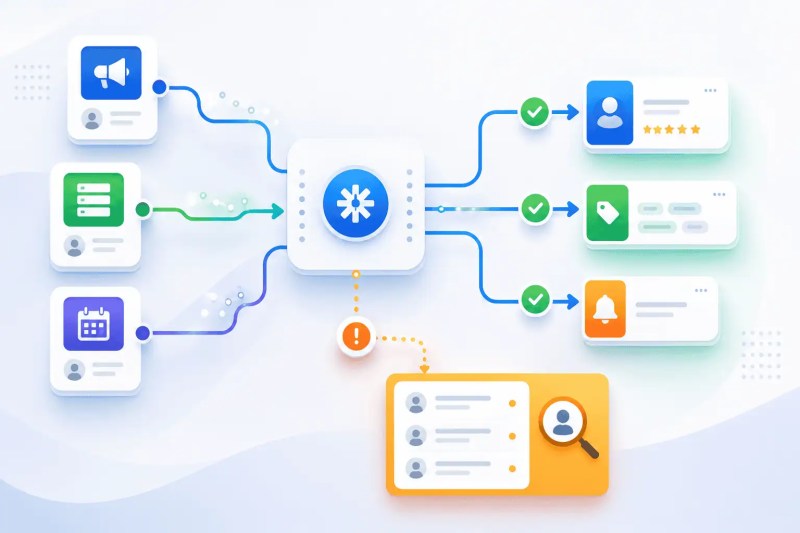
The workflow below illustrates a normal routing path and a separate route for incomplete records. Assign an owner to the review queue so exceptions receive follow-up.
CRM and Data Entry Automation Examples
CRM automation can reduce repeated typing, but copied data can still be incomplete, stale, or assigned to the wrong record. Zapier can transform values when you configure Formatter or other processing steps. It does not automatically establish that the source information is accurate.
Example: Pipedrive deal updates to Google Sheets. Use the deal ID to locate the correct reporting row and write its current owner, value, and stage. Decide whether the sheet is a current-state report or an event log: the first updates an existing row, while the second intentionally retains each change. Treating these as the same design can create apparent duplicates or lost history.
When maintaining current state, retrieve the latest source record before writing and retain its update time or version. A delay alone does not guarantee event order, and a separate read-then-write timestamp check can still race with another run. If conflicting writes would be consequential, use serialization per record or a destination that supports atomic conditional updates. See common CRM pipeline problems.
| Workflow | Trigger | Common Failure Point |
|---|---|---|
| Contact creation from form | Form submission | Duplicate contacts from repeat submissions |
| Deal stage update to Sheet | CRM stage change | Race condition on rapid updates |
| Owner assignment on new lead | New CRM record | Static assignment ignores rep capacity |
| Tag application on field update | Field value change | Tag not removed when field is reversed |
Example: CRM segmentation when a score changes. If a label or property represents current qualification, define both entry and exit rules. When the score falls below the threshold, update the qualification state as well. If the label is intended to preserve historical qualification, document that meaning so it is not mistaken for current status.
The comparison illustrates correct record updates alongside duplicates and conflicting writes. These problems can occur at low volume too; higher volume increases the number of affected records if the underlying issue persists.

For related implementation options, explore our automated CRM data entry solutions.
Document and Invoice Automation Examples
Example: Typeform submission to a draft invoice PDF. Validate the customer details and line items, obtain approved prices from the intended source, and populate a document template. Review the draft before sending when inputs or amounts require approval. File generation, review, and delivery are separate steps with separate outcomes to verify.
Use a valid-data branch for document generation and a missing-data branch that creates a review task or internal alert. A rejected Filter does not execute later alert steps, so placing “send an alert” after that Filter will not handle rejected submissions. Build the alternate route explicitly, and test it with required fields removed.
Example: Completed DocuSign envelope to Google Drive and an account-manager task. Trigger from the required completion state, retrieve the completed document using a supported action, store it in the approved folder, and log the envelope ID and completion time. Route using a verified account-to-folder mapping rather than a name fragment, and check the destination’s sharing permissions.
Our document automation guide covers related approval, storage, and workflow-design considerations.
Document check: verify that every completed envelope has the expected stored file and that duplicate delivery does not create unwanted copies. A successful upload is not enough if the file is in the wrong account folder. See automated contract workflow management.
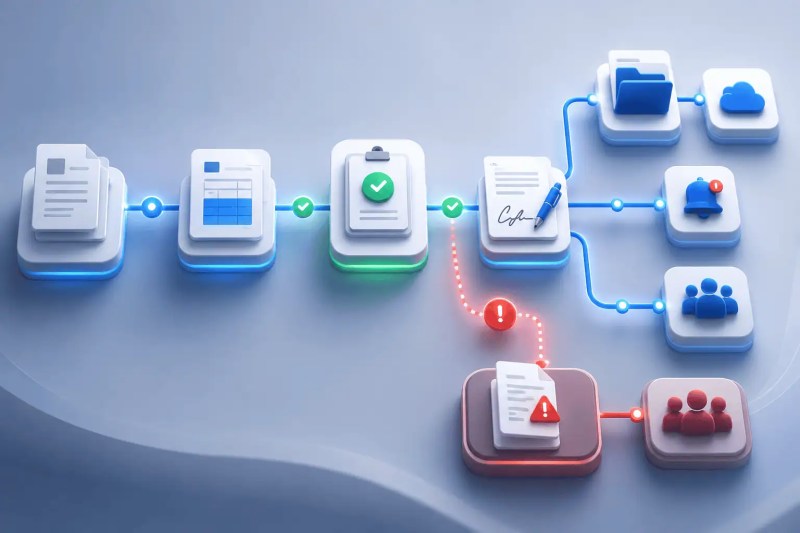
The diagram connects document validation, approval, storage, and notification. Give rejected or incomplete documents an explicit review destination.
Internal Notification and Team Handoff Examples
Internal notifications need an owner and a clear next action. A delivered Slack message shows that the notification step ran; it does not establish that someone accepted or completed the work. Account for leave, unavailable recipients, and unmonitored channels.
Example: Priority Zendesk ticket to Asana and Slack. When a ticket meets the escalation rule, find or create an Asana task linked to the ticket, assign an owner and due date, then post the task link in Slack. Check for an existing task when the ticket is updated again. Track task status or acknowledgement if the handoff needs a measurable response.
Example: Field-team submission to a regional task queue. A new Google Sheets row provides a submission ID, region, and requested work. Map the region to an approved owner, then create the task. Send missing or unrecognized regions to a monitored fallback queue, and record the created task ID so retries can check whether the task already exists.
Operational note: name the person responsible for the fallback queue and define when unacknowledged work should escalate. A fallback destination only helps if someone checks and resolves its contents.
Support and Customer Communication Examples
Customer communication needs checks for the recipient, message content, event status, and duplicate delivery. An email action reporting success does not guarantee delivery to the inbox. Monitor the sending platform’s delivery and bounce information separately where available.
Example: Low Typeform survey score to a Zendesk ticket and follow-up draft. Check the score against your service rule, create or update a ticket linked to the response ID, and prepare a message using the submitted context. Start with a draft when the response needs judgement. Restrict the information included in notifications to what the recipient needs.
Clean the name where useful and provide a neutral greeting when it is missing; formatting cannot recover a name that was never supplied. If an address is missing or invalid, route the case for internal review instead of attempting delivery. Keep service follow-up separate from marketing enrolment and respect the communication preferences recorded in the relevant system.
Example: Confirmed refund to a CRM update and customer notification. Record the refund ID, verify its status with the payment platform, and send wording that matches the confirmed state. A short delay does not prove that a refund succeeded. For example, Stripe documents pending and failed refunds as well as later status changes; see Stripe’s refund documentation. Handle those outcomes explicitly and avoid promising that funds have already reached the customer. See our guide to syncing CRM systems.
Communication check: test missing names, invalid addresses, duplicate events, and later status changes. Check whether the payment or email platform already sends a receipt before adding a second notification. Measure delivery failures and complaints using provider data rather than assuming personalization alone determines deliverability.
Where Zapier Automation Commonly Breaks
The examples highlight several possible failure modes. They do not establish which occurs most often in your account. Review actual Zap History, source data, and destination records to identify the cause:
- Missing required fields: The trigger fires but a downstream action needs a value that wasn’t provided. The Zap errors or creates an incomplete record.
- Schema changes in connected apps: A source field or integration response changes. Check the underlying field ID and actual payload before updating the mapping.
- Race conditions: Two events fire close together, and the actions execute out of order, overwriting newer data with older state.
- Unhandled edge cases in Paths: Rules omit an input case or overlap unintentionally. Test which branches match and add an explicit review route for unmatched business data.
- No error monitoring: No owner reviews errors, held runs, or missing expected outcomes. Define alerts and follow-up responsibilities.
For each Zap, test a normal input, a missing required field, a duplicate event, an unmatched routing value, and a downstream failure. Use test destinations to avoid sending real messages or creating unintended records. Verify both the run status and the business outcome before publishing.
Configure Paths deliberately: more than one branch can match, so make rules mutually exclusive when only one action should occur. A fallback for unmatched conditions is not a substitute for handling an API failure inside a branch. See Zapier’s Paths documentation.
Review alert and replay settings. Zapier Autoreplay requires a supported paid plan and must be enabled. With Autoreplay, error emails and related Zapier Manager error notifications may wait until the final retry fails. Before replaying, inspect completed actions; replaying an entire Zap can repeat successful writes. See Zapier’s replay documentation.
For teams evaluating whether Zapier is the right platform for their use case, the blog on how to choose the right automation platform for your business covers the decision criteria in detail.
Final Answer
Final Answer: Start with a workflow that removes a clear manual handoff: lead capture, a CRM update, document preparation, a team task, or a customer notification. Define the trigger, required data, destination action, duplicate check, and review route. Test realistic exceptions and confirm the business result before expanding the automation.
Need a reliable system?
Related Resources
- Browse All Automation Guides
- Browse All Blog Posts
- Browse All Automation Solutions
- Browse All Automation Services
- Zapier Automation Guide: Complete Overview
- Zapier vs Make vs n8n: Platform Comparison
- What Is Zapier and How Does It Work
- Common Workflow Automation Mistakes to Avoid
- Zapier Workflow Automation Solutions
- Automation and Integration Services
- Zapier Alternatives for Business Automation
FAQs
What types of workflows are Zapier automation examples best suited for?
Useful candidates include lead capture, CRM updates, document handoffs, and customer notifications where the connected apps expose the required events and actions. Check the plan, event timing, API limits, and expected volume. Suitability depends on the complete workflow, not simply whether it has several steps.
Why do Zapier automation examples fail when volume increases?
More events can expose existing data-quality or duplicate-handling problems and can also reach task or API limits. Concurrent updates may create conflicts. Inspect the actual failures and usage before deciding that volume is the cause.
Can Zapier handle multi-step workflows with conditional logic?
Yes. Paths can route data through different branches, and Filters let later actions continue only when their conditions pass. Test overlapping conditions and unmatched inputs. Use a dedicated review route when rejected data needs follow-up.
How do you know when a Zapier workflow has failed?
Check Zap History and the account’s notification settings. Add appropriate alerts and a responsible owner, and review held runs as well as errors. Autoreplay can delay error notifications until its final attempt fails. Also reconcile expected source events with results, because an incorrect record can be created by a technically successful run.
What’s the difference between a Zapier automation example and a production-ready workflow?
An example describes a possible sequence. A production workflow also needs verified app capabilities, tested mappings, permissions, duplicate protection, exception handling, monitoring, and an owner who can recover failed work. The checks should match the consequences of an incorrect action.
About the author

Miguel Carlos Arao is the Founder & CEO of Alltomate, a Zapier Certified Platinum Solution Partner focused on Zapier workflow automation, including trigger logic design, data mapping systems, and multi-step conditional pipelines.

Built by a certified Zapier automation partner
Explore more at Zapier workflow automation solutions, the complete Zapier automation guide, and business automation consulting services.