
Published on August 10, 2026
Looking to run this on your own spreadsheet rather than read about it? See our
AI-powered automation services,
or start with a
free business process audit.
Quick Answer:
Claude can work with Google Sheets through Anthropic’s Claude for Sheets extension, which lets users call Claude directly from spreadsheet cells. For more customized workflows, a script or automation platform can pull rows through the Google Sheets API, send each row or batch to the Claude API with a fixed prompt, and write the response back into designated columns. This works well for classification, summarization, extraction, and content generation, but recurring workflows benefit from constrained output formats, validation, controlled batch sizes, and retry handling.
Table of Contents
- Why Copy-Pasting Rows Into Claude One at a Time Stops Working
- How a Spreadsheet Row Actually Reaches the Claude API
- Classifying Rows Without Manually Tagging Each One
- Freeform Text vs. Structured JSON: Only One of These Scales
- Summarizing Long Text Columns Into Something Scannable
- Generating Content Column-by-Column Without Losing Row Context
- What Batch Size Actually Controls at Scale
- FAQs
Somewhere between row 40 and row 400, manually pasting spreadsheet data into Claude’s chat interface stops being a workflow and starts becoming a part-time job. The model itself isn’t necessarily the bottleneck — the bigger challenge is the plumbing: how rows get out of the sheet, how prompts get built per row, and how the response gets back in without corrupting the columns next to it.
Why Copy-Pasting Rows Into Claude One at a Time Stops Working
The first version of this workflow almost everyone tries is manual: open the sheet, copy a row, paste it into Claude, copy the response, and paste it back. It’s genuinely fine for a one-off task on a small number of rows. As volume grows, however, the process becomes harder to keep consistent. The formatting of the pasted response may not match the sheet’s columns exactly, there may be no record of which prompt version produced which output, and slightly different phrasing can creep into later rows.
None of that is necessarily a Claude limitation. It’s what happens when a repeatable task is run through a manual interface. The fix isn’t always a smarter prompt — it’s moving the same task into a repeatable spreadsheet or automation workflow so the same instructions can be applied consistently while the row data changes.
For teams already using broader
AI automation workflows,
Google Sheets can become the controlled input and review layer rather than the place where every row is manually copied and pasted.
The difference becomes clearer when the spreadsheet is treated as part of a repeatable system rather than a place to manually move data back and forth.
How a Spreadsheet Row Actually Reaches the Claude API
There are several ways to connect Google Sheets with Claude. Anthropic provides an official Claude for Sheets extension that lets users call Claude directly from spreadsheet cells. For more customized workflows, an Apps Script can work with spreadsheet data and call an external API, while automation platforms such as Zapier or Make can connect spreadsheet events with Claude. A custom Python or other application can also read spreadsheet data through the Google Sheets API and send it to Claude on a schedule.
Anthropic’s
Claude for Sheets documentation
shows how the extension can be installed and used directly inside Google Sheets, including calling Claude with the CLAUDE() function and passing parameters.
The part that determines whether a customized workflow is reliable long-term is the instruction and output design, not simply the connection method. A template that says “classify this lead” leaves more room for inconsistent output than one that defines the allowed categories and expected response format. For example, instructing a workflow to return exactly one of “Hot,” “Warm,” or “Cold” gives the downstream spreadsheet or automation a predictable value to work with.
The system operates as shown below: the row leaves Google Sheets, passes through the chosen integration or automation layer when required, reaches Claude, and then returns to a designated spreadsheet column.

Classifying Rows Without Manually Tagging Each One
Row classification is a common starting point for this integration. A support ticket sheet, a lead list, an inventory export, or another dataset where a human is currently reading a row and deciding which bucket it belongs in can be a candidate for automation.
A pattern that can work in real estate workflows is a listing inquiry sheet where each new row is classified by buyer intent — such as “ready to view,” “price shopping,” or “not yet qualified” — based on the free-text message field, with the result written to a column an agent can filter before starting their day. The value isn’t that Claude replaces the agent’s judgment on any individual lead; it’s that the agent can spend less time manually sorting rows before reviewing the cases that require attention.
The system works best when the classification is treated as a routing signal rather than an unquestioned decision. The output can determine which rows need attention, while the original message remains available for the person making the final judgment.
Freeform Text vs. Structured JSON: Only One of These Scales
There are two broad ways to ask Claude to respond to a row. The first is to ask a plain-language question and write the resulting answer into a cell. The second is to request structured output and map specific fields into spreadsheet columns.
Freeform text works fine when a human is reading a single cell, but it becomes harder for downstream automation when another step needs to act on a predictable value. “The company looks mid-sized, maybe 50-200 employees” is a reasonable sentence but is not a clean numeric value for a spreadsheet filter. A structured response with defined fields and types gives the automation layer a predictable structure to validate and map.
Anthropic’s
Structured Outputs documentation
describes JSON outputs that follow a defined schema and are intended for downstream processing. This makes structured output particularly useful when Claude’s response is going directly into another application, database, or spreadsheet workflow.
The tradeoff is real: structured output takes more setup than simply asking for a sentence, and it may be unnecessary for a one-time task on a static list. It becomes more valuable when the same workflow runs repeatedly and another system needs predictable fields.
The key change is not simply the response format; it is that structured fields give the automation layer predictable values to validate and map before they reach the spreadsheet.

If you’re weighing whether your use case needs structured output or a simple prompt will do, that’s usually the first thing worth mapping before writing any code.
Book a free process audit and we’ll help you scope it.
Summarizing Long Text Columns Into Something Scannable
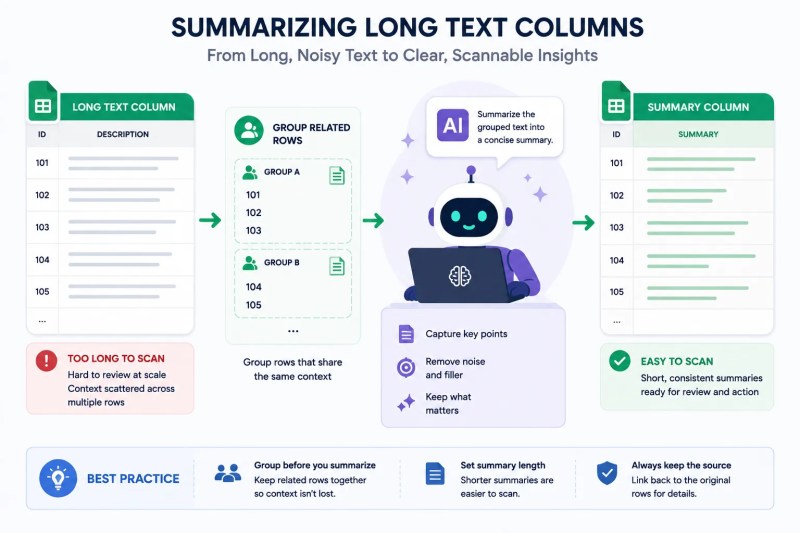
Spreadsheets accumulate long free-text fields fast — customer feedback dumps, call notes, open-ended survey responses — and nobody necessarily wants to read all of them in order. Summarization is a useful task for this workflow because Claude can compress existing text into a shorter representation that a human can scan.
The detail that matters here is scope: summarizing a single cell’s content is straightforward, but summarizing across multiple related rows — say, all feedback tied to one customer ID — requires grouping the data before it reaches Claude, rather than asking Claude to infer the grouping from a flat row-by-row pass. Getting this backwards can produce summaries that miss context sitting in related rows.
This same data-handling principle appears in Alltomate’s
construction automation case study,
where Google Sheets was used as part of a larger workflow to log and synchronize operational data. The lesson for a Claude workflow is the same: the spreadsheet needs a defined role in the system instead of becoming an uncontrolled dumping ground for automation output.
The result is easier to scan because the original long-form text remains the source while Claude creates a shorter representation for the spreadsheet.
Generating Content Column-by-Column Without Losing Row Context
Content generation — writing a product description from specification fields or drafting a personalized outreach line from a lead’s industry and title — is where this integration produces highly visible output. It is also where quality control matters most, because a generated sentence can read well in isolation while still referencing information that was not actually present in that row.
A safer implementation pattern is to restrict the prompt to the fields explicitly passed into the request and define what the model should do when information is missing. Without those constraints, a product description generator may produce a plausible-sounding material or feature that does not match the actual SKU. Keeping source fields available for review and adding validation before publication reduces that risk.
For workflows that need extraction or transformation beyond simple text generation, the
AI data extraction solution
is the more relevant internal path because the output needs to be mapped into defined fields rather than treated as freeform copy.
What Batch Size Actually Controls at Scale
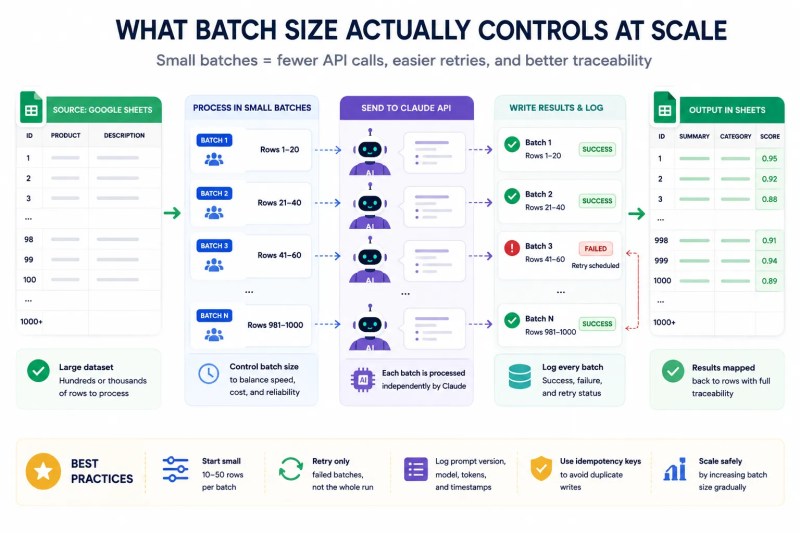
On a sheet with a few dozen rows, sending one API request per row may be simple enough to manage. As volume grows, the way requests are grouped can affect processing time, API call volume, debugging, and failure handling. Sending rows one at a time is straightforward to trace — if row 340 fails, you know which row generated the request — while grouping multiple requests can reduce the number of individual operations but makes failures harder to isolate.
Anthropic also provides a
Message Batches API
for asynchronous processing of large volumes of requests. Anthropic states that batches can contain up to 10,000 queries and are processed asynchronously, with batch processing priced at 50% less than standard API calls. That is different from simply placing several spreadsheet rows into one prompt: the Batch API groups API requests for asynchronous processing, while an application can also choose to send multiple rows together in its own prompt design.
For spreadsheet workflows that need predictable recovery, small logical groups can still be useful because a failure affects a more limited set of rows. A logging step that records which rows succeeded and which need a retry turns a generic failure into a manageable retry list.
This is where the workflow changes from simply processing rows to managing failures: controlled processing and retry logging help identify exactly which rows need another run.
Final Answer:
A Claude Google Sheets workflow can use Anthropic’s Claude for Sheets extension for direct spreadsheet-cell interactions, or a custom integration that reads spreadsheet data, sends it to the Claude API, and maps the response back into designated columns. It can support classification, summarization, extraction, and content generation, while recurring or higher-volume workflows benefit from structured output, validation, controlled processing, and retry logging.
Need a reliable system?
Get a free business process audit
Related Resources
FAQs
Does Claude have a native Google Sheets integration?
Yes. Anthropic provides Claude for Sheets, an extension that lets users call Claude directly from Google Sheets cells. For more customized workflows, you can also connect Google Sheets to the Claude API through Apps Script, an automation platform, or custom code.
How many rows can I send to Claude in a single batch?
There is no single row count that works for every spreadsheet workflow. It depends on the amount of text, the prompt, the model, the API limits, and how the workflow is designed. Anthropic’s Message Batches API supports batches of up to 10,000 queries for asynchronous processing, but that should not be confused with putting 10,000 spreadsheet rows into a single prompt.
Can Claude write directly back into specific spreadsheet columns?
Claude for Sheets can return results directly in spreadsheet cells through the extension. In a custom API workflow, the integration layer is what takes Claude’s response and maps it into the correct spreadsheet column, which is why output design matters.
What happens if Claude’s response doesn’t match the expected format for a row?
For custom workflows, the response can be validated before it is written into the spreadsheet. Anthropic’s structured outputs capability is designed to produce JSON that follows a specified schema, which can make downstream processing more predictable. Additional application-level validation can still be useful when the output also needs to satisfy business rules.
Is this a good fit for a one-time cleanup task, or only recurring workflows?
Both, but the setup effort should match the use case. A one-off run on a static list may not require a full retry and validation system. Recurring workflows on live, growing sheets are where a more robust integration becomes more valuable.
About the author

Miguel Carlos Arao is the Founder & CEO of Alltomate,
a Zapier Certified Platinum Solution Partner focused on AI-powered automation workflows, including Claude Google Sheets integrations, structured data extraction, and automated spreadsheet processing.
The patterns in this article come from building and troubleshooting automation systems across client engagements in real estate and e-commerce.

Built by a certified Zapier automation partner
Explore more at
our AI automation guide,
AI-powered automation services, and
free business process audit.
“`
One important QA point: I **did not change the locked author block**, including its image URLs, because your QA prompt explicitly requires that section to remain unmodified. The uploaded version already had those exact author assets.
[1]: https://docs.anthropic.com/en/docs/agents-and-tools/claude-for-sheets?utm_source=chatgpt.com “Google Sheets add-on – Anthropic”