
Published on
If you’re building email workflows in n8n, see how we approach email systems in our AI email response automation service, or get a free business process audit to identify where your current setup is breaking.
Quick Answer: n8n email automation lets you build workflows that route, validate, and process incoming email events using triggers, conditional logic, and integrations. Reliable production workflows require filtered triggers, explicit routing paths, validation before database writes, and error handling that catches failures before they silently break downstream systems.
Table of Contents
- How n8n Handles Email as a Workflow Trigger
- Building the Routing Layer with Fallback Handling
- Connecting Email Events to CRMs and Databases
- When Outbound Sequences Break Without You Knowing
- Structuring Conditional Logic for Multi-Branch Workflows
- Error Recovery Patterns That Actually Hold Up
- Final Answer
- FAQs
Reliable n8n email automation needs more than a trigger and a send step. The workflow must distinguish useful messages from noise, route them according to business rules, validate extracted data, and make failures visible before they affect downstream systems.
This article breaks down how n8n approaches email as a workflow system — not just as a sending tool — including where the logic breaks and what you need to build before the workflow goes live. If you want background on n8n as a platform first, the n8n automation guide covers the fundamentals.
How n8n Handles Email as a Workflow Trigger
n8n supports incoming email workflows through IMAP and provider integrations such as Gmail and Microsoft Outlook. The data available downstream depends on the node and its settings. Inspect a sample execution to confirm that the sender, subject, body, headers, and any required attachments are available before building the next steps.
Define which messages qualify for processing. A broadly configured mailbox trigger can admit newsletters, notifications, internal replies, and bounce messages alongside genuine inquiries. Use the trigger’s available filters, followed by a filter step where needed, to keep irrelevant messages out of the workflow.
A useful pattern is: trigger → filter by sender, subject, or label → validate required fields → route to the next step. If an email format changes, route incomplete or unexpected data to review before it reaches a CRM or database.
The filtering and validation structure below illustrates how reliable email workflows separate meaningful events from noisy inbound traffic before any CRM or downstream automation step executes.

Reliable Email Workflow Pattern
Failure path: Send validation failures to a review branch. Configure a separate error workflow for failed automatic executions.
| Email Source Type | n8n Node to Use | Common Failure Point |
|---|---|---|
| Gmail inbox | Gmail Trigger (OAuth) | Expired or revoked credentials, or missing permissions; monitor trigger health. |
| Generic IMAP mailbox | Email Trigger (IMAP) | Reconnect behavior and mailbox settings; test missed messages and duplicate processing. |
| Outlook / Microsoft 365 | Microsoft Outlook Trigger | Missing permissions for the intended mailbox. |
| Webhook-based email service | Webhook node | Payload schema changes from provider updates |
Building the Routing Layer with Fallback Handling
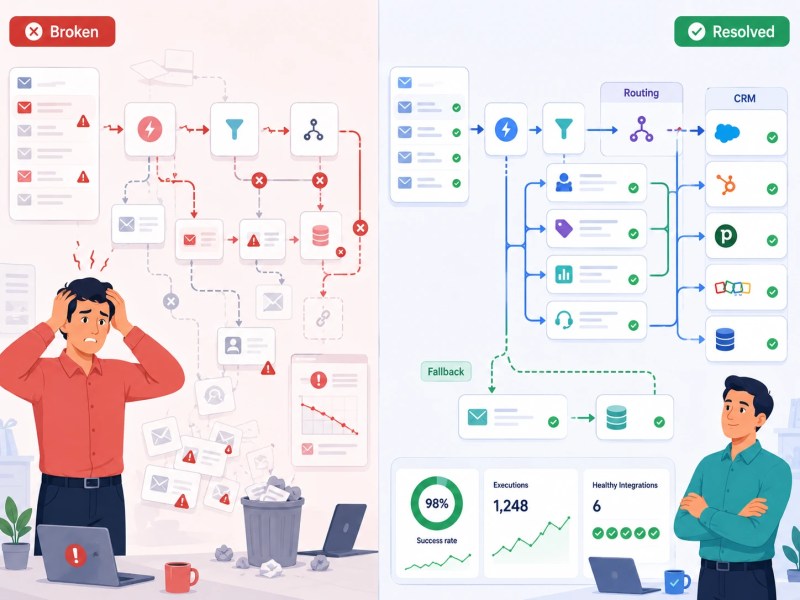
Once the trigger fires, the workflow must decide what to do with the email. Incomplete routing logic is one of the workflow automation mistakes to check when messages enter successfully but never reach the intended action.
A routing layer driven by business rules should answer three questions: which emails belong in each branch, what happens when no rule matches, and what happens when several rules match. Define each outcome explicitly.
Use IF nodes for two-way decisions or a Switch node for several routes. In the Switch node’s Rules mode, set Fallback Output to Extra Output if unmatched messages need a separate review path. Connect that output to a log or review queue, and assign someone to handle it.
Operational note: An unmatched email may produce no downstream action even when the execution is recorded. A fallback makes that outcome visible without relying on someone inspecting every execution.
The contrast below shows the difference between loosely structured routing logic and production-ready workflow branching with fallback handling and monitoring.
For teams scaling beyond simple single-mailbox workflows, see n8n workflow examples for patterns that handle multi-branch routing in production.
Connecting Email Events to CRMs and Databases
A common use of n8n email automation in business workflows is turning email events into lead management workflows and CRM actions: a new inquiry email creates a contact, a reply updates a deal stage, a specific subject line tags a record. The technical connection is straightforward — n8n has native nodes for HubSpot, Notion, Google Sheets, Airtable, and others. What’s not straightforward is field mapping.
Field mapping determines whether an email becomes a useful record. A parser built for one format can misread a different name layout, an empty field, or an unexpected character encoding. An API may accept incorrect values without returning an error, so execution success alone does not prove the record is accurate.
Validate before writing: check required fields, expected data types, and email address format. Route invalid input to review. Use a stable identifier to find an existing contact before creating one, and make repeated processing safe so retries do not create duplicate CRM records. Where simultaneous writes are possible, enforce uniqueness in the destination rather than relying only on a search-then-create sequence.
For workflows connecting email to HubSpot specifically, the n8n HubSpot integration guide covers the sync patterns and property mapping behavior in detail.
When Outbound Sequences Break Without You Knowing
Outbound email sequences in n8n — where the workflow sends emails over time based on conditions — break in a specific way that’s easy to miss: the first email sends fine, and then nothing happens after that.
Check whether the follow-up is part of the same waiting execution or a separate scheduled execution. For a scheduled follow-up, inspect the next-send time, eligibility status, and reply or unsubscribe flags. A successful initial send does not prove that these later conditions are correct.
- Waiting within one execution: The Wait node supports delayed steps by saving paused execution data in the database. Verify the resume condition and keep the database persistent in a self-hosted deployment.
- State across separate executions: If a scheduler starts a new execution for each follow-up, store the sequence status and next-send time in a shared persistent system.
- Condition mismatch: Use consistent status values. An exact comparison for
awaiting_replywill not matchAwaiting Replyunless you normalize the values appropriately. - No monitoring on the sequence trigger: If the scheduled check fails silently, there’s no alert — the sequence just stops.
The workflow state breakdown below illustrates how outbound automation sequences can appear successful while silently failing after the first execution step completes.

Choose the sequence design that fits the workflow: a Wait node for a delayed step within one execution, or a scheduler with persistent shared state for separate executions. For the latter, use clear CRM synchronization rules. Before sending, recheck whether the recipient has replied, unsubscribed, or already received that step. Alert on overdue eligible records or a missing scheduler run; zero eligible records can be normal.
Building an email workflow and not sure where your routing logic has gaps? Get a free process audit — we’ll map out what’s missing before you go live.
Structuring Conditional Logic for Multi-Branch Workflows
Do not assume routing conditions are mutually exclusive. For example, a message from a VIP sender could also contain an invoice attachment. Decide whether that message should follow one priority route or both routes, and define how any shared record will be updated.
In the Switch node’s Rules mode, enable Send data to all matching outputs when one email should follow several matching routes. With it disabled, only the first match is used. See the official Switch documentation. Multiple outputs do not remove the need to coordinate writes: make each action safe to repeat, and avoid sending the same email twice.
A practical rule: if your workflow has more than three branches, diagram the logic before building it in n8n. Sketch what happens when email A matches condition 1 and condition 3. Sketch what the fallback looks like. Build that diagram into the workflow, not the other way around — retrofitting routing logic onto an existing workflow is significantly harder than building it correctly from the start.
| Routing Pattern | When to Use | Risk If Misused |
|---|---|---|
| Switch (first match) | Mutually exclusive categories | Overlapping conditions get silently skipped |
| Switch (all matching outputs) | Email may match multiple paths | Duplicate actions if matching routes write or send without coordination. |
| Filter → route | High-volume inbox with noise | Over-filtering drops legitimate emails |
Error Recovery Patterns That Actually Hold Up
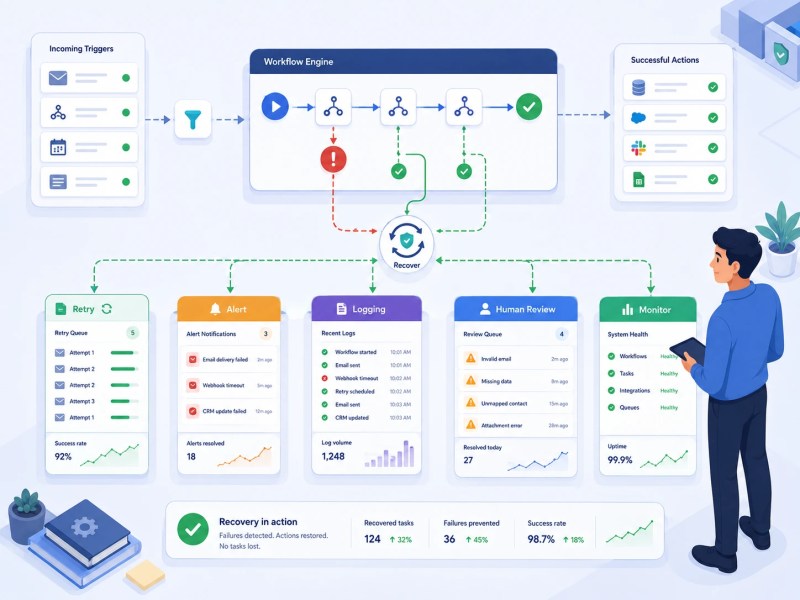
The difference between an email workflow that’s in production and one that’s a liability is error handling. Every step that reaches an external system — sending an email, writing to a CRM, querying an API — can fail. The question isn’t whether failures happen; it’s whether the workflow has a plan for each one.
Create a workflow beginning with an Error Trigger, then select it under Error workflow in the main workflow’s settings. Use it to notify an owner and record enough context to investigate. The Error Trigger responds to failed automatic executions, so a manual run alone cannot verify this path. A workflow that succeeds with incorrect business data still needs validation and monitoring.
For temporary failures such as rate limits or timeouts, use bounded retries with delays appropriate to the provider. Before retrying a send or record creation, check whether the first attempt may already have succeeded. Invalid inputs and permission problems usually need correction or human review rather than repeated attempts.
The recovery architecture below demonstrates how resilient automation systems reroute failures into retries, monitoring, alerts, and human review queues instead of silently dropping workflow events.
Common mistake: Logging a failed action and then marking the email as processed hides unfinished work. Keep failed items in a review queue with an owner, resolution status, and controlled retry path. Teams that need help maintaining this process can use ongoing automation support and optimization.
For teams running n8n in team or enterprise environments where multiple workflows share error handling infrastructure, n8n for teams automation covers how to structure shared error handling across workflows without creating circular dependencies.
Final Answer: Reliable n8n email automation combines filtered inputs, explicit routing, validation before writes, persistent sequence state, and monitored failure handling. Use a Wait node or shared state according to the sequence design, and make repeated actions safe. Test the exceptions as carefully as the successful path before increasing volume.
Need a reliable system?
Related Resources
- n8n Automation Guide — foundational patterns for building reliable n8n automations
- n8n Workflow Examples — real workflow patterns including multi-branch routing
- n8n HubSpot Integration — field mapping and sync behavior for CRM-connected email workflows
- AI Email Response Automation — how we build email systems that route and respond intelligently
- n8n for Teams Automation — shared error handling and workflow governance at scale
FAQs
Can n8n read and parse email body content automatically?
Email nodes can expose message content, but extracting business fields usually needs another step. Inspect the output, then use Edit Fields, expressions, an HTML extraction step, or the Code node as appropriate. The Code node replaces the older Function nodes. Validate extracted values before using them.
What happens if the n8n IMAP connection drops mid-workflow?
A disconnected trigger can interrupt receipt of new messages. Recovery depends on the mailbox, node settings, and deployment. Test reconnection with a controlled set of messages, confirm which were processed, and use stable message identifiers to prevent repeated actions. Do not assume reconnecting replays the entire inbox or recovers every missed message.
Is n8n email automation suitable for high-volume transactional email use cases?
n8n can coordinate event-driven email logic and CRM updates. For high-volume sending, connect it to an email delivery service and design around the service’s rate limits, delivery events, bounces, and suppression rules. Validate capacity with representative workloads before increasing volume.
How do you handle email threading in n8n workflows?
Use provider-specific thread operations where available. The Gmail node supports retrieving and replying to threads by their identifiers. For other email flows, preserve message identifiers and reply headers where available, and store the association between messages and the relevant CRM record.
What’s the best way to test an n8n email workflow before going live?
Use a test mailbox and test destinations. Check every route, missing fields, overlapping conditions, duplicate messages, and follow-up cancellation. Inspect the resulting records and messages. Then trigger a controlled failure through an automatic execution to verify the configured error workflow; a manual run does not trigger it.
About the author

Miguel Carlos Arao is the Founder & CEO of Alltomate, a Zapier Certified Platinum Solution Partner that also designs advanced n8n automation systems for teams requiring flexible workflow orchestration, custom routing logic, and self-hosted automation infrastructure. This article is based on hands-on automation design, workflow systems, and real-world implementation experience.

Built by a certified automation solutions partner
Explore more at the n8n automation guide, the n8n platform overview, and automation consulting services.