
Published on
If you’re building form-triggered workflows, see how we design integration-ready automation systems or request a free business process audit.
Quick Answer: n8n form automation turns a submission into a workflow that validates inputs, routes requests, and updates connected tools. Use a native Form Trigger or connect an external form provider. Reliable processing depends on checked field mappings, a route for unexpected input, and a recovery plan when an action fails.
Table of Contents
- What n8n Form Automation Actually Does
- How the Form Trigger Node Works
- Where Form Pipelines Break Before the Data Moves
- Routing Logic After a Form Submission
- Field Mapping and Stable Input Names
- Connecting Forms to External Systems
- Error Handling in Form-Triggered Automation
- When to Use n8n Forms vs. External Form Tools
- Putting It Into Practice
- FAQs
A form submission can start several business actions: creating a lead, assigning an owner, sending a receipt, and recording the request. Each action depends on the submitted values and the systems receiving them. A reliable workflow needs to define what counts as a valid submission and how its final outcome will be recorded.
n8n provides a native form entry point connected to its workflow engine. You can add transformations, conditional routes, application integrations, and recovery steps. The form collects the inputs; the workflow determines how those inputs become useful records and actions.
This guide covers native and external forms, input validation, routing, field mapping, and failure recovery. For the wider platform architecture, start with the n8n automation guide.
What n8n Form Automation Actually Does
n8n form automation connects a form to a workflow. A native Form Trigger starts a run when someone submits its form. External providers can deliver submissions through a supported integration or webhook. Inspect the actual output before building downstream actions: ordinary field values, uploaded files, and provider metadata may appear in different parts of the incoming data.
Once the submission arrives, the workflow can validate fields, transform values, select a route, and update several systems. Define the order of dependent actions and the handling of failures explicitly; drawing multiple branches does not by itself guarantee parallel execution or failure isolation.
For example, a services business could collect a name, email, company size, and service interest. Its workflow could validate the request, apply a qualification rule, create or update a CRM record, send a confirmation, notify sales, and log the outcome. This is an illustrative design; each destination and rule needs configuration and testing.
Start by deciding which result matters most. If the CRM record is the accepted intake record, complete and verify that write before reporting that the lead has been processed.
Before adding more actions: define a submission identifier, an owner for unresolved requests, and a record of which steps completed. Those details make failures easier to reconcile as submission volume grows.
How the Form Trigger Node Works
The Form Trigger generates a form URL from your configured fields and exposes separate test and production URLs. Publish the workflow and share its production URL for live submissions. Check the controls in your installed version; older interfaces may use an activation toggle.
Set a stable Field Name for each value and a readable Field Label for the form. A name such as company_name becomes an output key. {{ $json.company_name }} reads that key from the current input item, so it only works downstream while that item still contains the value.
Testing can perform real actions. With the test URL, Execute Step captures the trigger output, while Execute Workflow can run the connected actions. Use test credentials and destinations before exercising the complete flow.
For multiple pages, begin with a Form Trigger and add Form nodes for subsequent pages or completion. Processing nodes can run between pages. Test what the submitter sees when validation fails or a later system is unavailable.
After duplicating a workflow: check its form URLs, any custom path, credentials, and destination records before publishing. Update embeds and shared links to the intended production URL, then submit a controlled test to confirm which workflow receives it.
Where Form Pipelines Break Before the Data Moves
A form workflow can fail before it reaches an external system when its input differs from what the next node expects. Begin troubleshooting by comparing the actual trigger output with the fields used in validation and routing.
Forms are user-controlled inputs. That means the data arriving at the trigger node is only as structured as the form design enforces. A dropdown with five options is predictable. A free-text field asking for company name can produce anything: abbreviations, trailing spaces, all-caps entries, or nothing at all if the field wasn’t required.
A missing or unexpected value can cause an API rejection, an incorrect record, or a route that processes no items. Inspect both the workflow execution and the destination record; a completed execution alone does not prove the intended business action occurred.
For example, an optional company field may be left blank even though the destination requires it. Decide whether to request that information, send the submission for review, or use a permitted default. Avoid inventing a company value just to make the API request succeed.
Validate the values the business action actually needs, even when the form also enforces required fields. Distinguish missing input from valid values such as 0 or false. Trim accidental whitespace where appropriate and check numbers, dates, and allowed options before mapping them.
Place validation before external writes. An IF node can route a missing or incorrectly formatted email to review. A format check does not establish that the address exists or belongs to the submitter; add verification only when the process requires it.
The diagram below illustrates a checkpoint that separates inputs needing review from those ready for processing.

Track rejected inputs: record why a submission failed validation and who should review it. Repeated failures may indicate an unclear form field or a mismatch with the destination requirements.
Building form workflows for your business?
See how we design integration-ready automation systems that connect forms to your existing tools reliably.
Routing Logic After a Form Submission
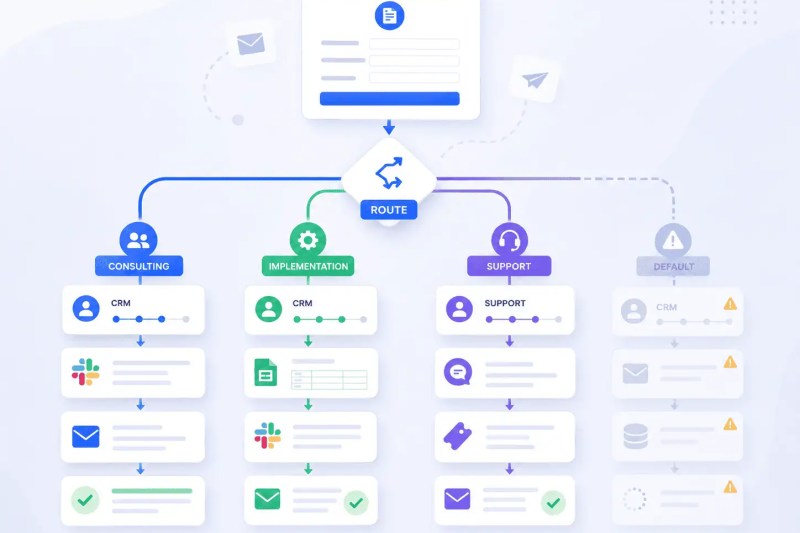
Assume a service business uses one form for three different service types: consulting, implementation, and support. Each type requires a different team to be notified, a different CRM pipeline stage to be set, and a different auto-reply email. The form collects a “service type” dropdown. What routes each submission to the right path is the Switch node — or in simpler cases, an IF node — placed immediately after the trigger.
Route on normalized values such as consulting, implementation, and support. Keep the form choices and routing rules aligned, and test each intended path after changing either side.
Handle values that match no rule. The Switch node defaults its Fallback Output to None, which discards unmatched items. Select Extra Output and connect it to review or another deliberate fallback when every submission must be accounted for. See the Switch node documentation.
For multi-select fields, inspect whether the incoming value is an array and write rules that test membership correctly. Enable Send data to all matching outputs when one submission should reach every matching route; leave it off when only the first match should run. Check that multiple routes will not duplicate the same external action.
The diagram shows possible routing paths. It does not establish their execution order or isolate failures between them; those behaviors depend on the workflow design and settings.
| Routing Node | Best For | Failure Mode |
|---|---|---|
| IF Node | A true/false decision using one or more conditions | False output left unconnected when review is needed |
| Switch Node | Multiple conditions, multiple paths | Unmatched items discarded when fallback is None |
| Filter Node | Drop submissions that don’t meet criteria | Legitimate submissions filtered silently |
Field Mapping and Stable Input Names
A form key named email does not establish how every destination will store that value. Configure and inspect the mapping in each action node. Some connectors offer automatic mapping, but matching names and compatible types still need verification.
Map the normalized submission to the destination schema: an email field, a company property, a spreadsheet column, or a notification body. Check the resulting record after a test run. If a preceding node replaced the input with its own response, carry the required fields forward or reference the relevant earlier node using n8n expressions.
Treat the output key as a contract. Changing the displayed Field Label need not change the Field Name. If the actual name or payload structure changes, update every dependent expression and mapping; otherwise a previously valid reference may return no value.
For forms that change frequently, add an Edit Fields (Set) node or a Code node to normalize the input once. Keep the fields needed later and document conversions, defaults, and rejection rules. This also makes it easier to reuse the business logic with another form provider.
- Verify every required destination mapping, including any automatic mapping offered by the connector.
- Use Edit Fields (Set) to normalize field names and values before external writes.
- Test empty strings, special characters, zero values, missing fields, and numbers submitted as text.
- Document which nodes depend on each input key and retest them after form changes.
Connecting Forms to External Systems
Use a native integration node when it supports the operation you need. Use an HTTP Request node when the target exposes a suitable API operation that the native node does not cover. In both cases, verify the credentials, required fields, and response.
Native nodes for tools such as HubSpot, Airtable, Google Sheets, Notion, and Slack simplify supported operations. Their capabilities vary. Do not assume every connector automatically manages rate limits, API changes, or all destination fields; check the specific operation and test its failure behavior.
With an HTTP Request node, configure the method, endpoint, authentication, headers, and body required by the API. Access still depends on permissions and network reachability. Check the response against the API contract: some services report an application-level failure inside a successful HTTP response. Handle that condition explicitly when the target API uses it.
For teams building form-to-CRM pipelines, the n8n HubSpot integration covers the specific configuration steps and common field mapping patterns in detail.
Order actions by dependency: if the CRM write is essential and a Slack notification is optional, complete the CRM step first and handle notification failure separately. Branches alone do not protect other actions from an unhandled error. Use explicit error paths or separately managed sub-workflows when work needs independent recovery.
Error Handling in Form-Triggered Automation
External services can reject requests, time out, or become unavailable. A failed execution may retain the original input if execution data is saved, but retention and pruning settings matter. For reliable intake, design a durable submission record with an identifier and processing status instead of relying solely on execution history.
Create a separate workflow beginning with an Error Trigger and select it as the main workflow’s error workflow. It receives failure details from automatic executions and can notify the maintainer. Manual test executions do not trigger it, so verify this path with a controlled automatic failure.
At the node level, use the available On Error options to route a failure to a recovery path, and bounded retries for suitable transient errors. A handled error may not fail the workflow or activate its Error Trigger; make that recovery path record and report its own unresolved failures. Backup writes can fail too, so test them.
Keep the same submission identifier when retrying the same request, and record which actions already succeeded. Retry a failed notification without creating another CRM record. Where simultaneous runs could create duplicates, use a destination-supported idempotency key or an atomic uniqueness rule. An email address alone may identify a contact without identifying a unique submission.
The diagram illustrates error detection and recovery paths. Confirm that alerts arrive and that a maintainer can identify which request failed, what completed, and what still needs replaying.

Reconcile outcomes: compare accepted submission records with completed destination records. An alert tells you something failed; reconciliation helps identify requests still waiting to be processed.
When to Use n8n Forms vs. External Form Tools
Native n8n forms can serve internal or public workflows. They support multiple pages, file fields, and custom CSS styling. Evaluate the actual form experience, access requirements, upload handling, and maintenance needs before adding another provider. See the Form node documentation for supported form elements.
An external form tool may fit an existing website, survey process, or specialized form requirement better. Connect it using the method supported by that provider, such as a webhook, a native integration, or a response-sheet integration. Do not assume every provider sends submissions directly through a built-in webhook.
Normalize the provider payload before reusing downstream logic. A Webhook node may expose submitted JSON under body, while a native form uses its configured output keys; files may arrive as binary data, metadata, or download links. Inspect an actual test submission and map it into a consistent structure. The n8n workflow examples can help you plan what happens after intake.
For teams evaluating where n8n fits relative to other automation platforms, the Zapier vs Make vs n8n comparison covers form-trigger support and integration depth across all three tools. And for a broader view of form-adjacent automation patterns, see how we approach data sync automation when forms feed into multi-system pipelines.
The operational difference between fragmented manual handling and centralized workflow orchestration is illustrated below.

Putting It Into Practice
Start with one complete submission path: collect the input, validate it, record the accepted request, route it, and verify the destination result. Then test missing values, unmatched routes, duplicate deliveries, and failed actions. Keep the form provider that meets your requirements and build explicit recovery around the connected systems.
Need a reliable system?
Related Resources
FAQs
Can n8n’s Form Trigger handle file uploads?
Yes. Add a File field and inspect its output before configuring the destination upload action. Choose where accepted files will be stored, and check size limits, access permissions, and retention for your deployment. Receiving a file does not automatically archive it in your intended document system.
What happens if a form submission arrives while the workflow is already running?
Another submission can start a separate execution. How many execute at once depends on the deployment and concurrency settings. These controls do not provide a database lock or prevent duplicate records. Design shared-record updates and duplicate handling separately, and respect each destination API’s limits.
How do you prevent spam submissions from triggering production workflows?
The Form Trigger includes Ignore Bots for traffic such as crawlers and link previews; it is not comprehensive spam protection. Restrict access for private intake. For public forms, assess validation and abuse controls appropriate to the submission channel. Checks after the trigger can stop later actions, but the workflow has already started.
Can one form trigger multiple separate workflows?
Yes. The receiving workflow can call others with the Execute Sub-workflow node. Define the inputs and choose whether it should wait for completion. If it continues without waiting, monitor the called workflows separately before treating their work as finished.
How do you test form workflows without submitting production data?
Use the test URL with fictitious inputs and isolated destination records or test accounts. Running the complete workflow can still call APIs, send messages, and create records. Verify the happy path and failures before switching to production credentials and publishing the intended form URL.
About the author

Miguel Carlos Arao is the Founder & CEO of Alltomate, a Zapier Certified Platinum Solution Partner specializing in workflow automation, system integrations, and multi-platform automation architecture across tools like n8n, Zapier, and Make. This article is based on hands-on implementation experience building production automation systems and form-triggered workflows for businesses.

Built by a certified Zapier automation partner
Explore more at n8n platform overview, n8n automation guide, and automation consulting services.