
Published on July 2, 2026
For a custom Zapier build, start with custom Zapier automation or request a free business process audit.
Quick Answer: Useful Zapier workflow examples usually fall into four patterns: lead intake, marketing follow-up, operations handoff, and support escalation. The difference between a basic Zap and a reliable workflow is the logic around it: filters to block bad records, paths to route different cases, multi-step actions to update every system involved, and error handling so the team knows when automation needs attention.
Table of Contents
- How to read these Zapier workflow examples
- Example 1: New lead intake that blocks bad CRM data
- Example 2: Marketing follow-up that changes by behavior
- Example 3: Operations handoff that keeps work from getting lost
- Example 4: Support escalation that routes exceptions
- What these examples need before they become reliable Zaps
- FAQs
A Zapier workflow example is only useful if it shows the business rule behind the automation. “Send form submission to CRM” is not a workflow yet. It becomes a workflow when the system knows which submissions to accept, which records to update, who should be notified, what happens when required fields are missing, and how exceptions are reviewed.
This guide is not a list of random Zap ideas. It focuses on workflow patterns: the trigger, decision logic, handoff, and failure path behind each automation. If you are still learning how Zapier fits into your stack, the Zapier platform guide gives the broader context. Here, the focus is narrower: real Zapier workflow automation patterns that sales, marketing, operations, and support teams can adapt without copying blindly.
How to Read These Zapier Workflow Examples
The wrong way to copy a Zapier workflow is to start with the app list. “Google Sheets to HubSpot to Slack” sounds practical, but it skips the part that actually decides whether the system works: the rule logic. If those rules are unclear, the workflow may move data faster while still sending it to the wrong place, which is why business rules automation matters before the Zap is built.
A better way is to read each workflow in four layers:
| Layer | Question to Ask | Why It Matters |
|---|---|---|
| Trigger | What event starts the Zap? | Bad triggers create duplicate work or fire too often. |
| Filter | Which records should continue? | Filters prevent low-quality or incomplete data from moving downstream. |
| Path | What should happen for each condition? | Paths keep one workflow from treating every case the same. |
| Exception | What happens when the Zap cannot complete cleanly? | Error handling keeps silent failures from becoming operational surprises. |
The reliable pattern is easier to see when the workflow is treated as a decision system, not just a trigger-and-action chain.
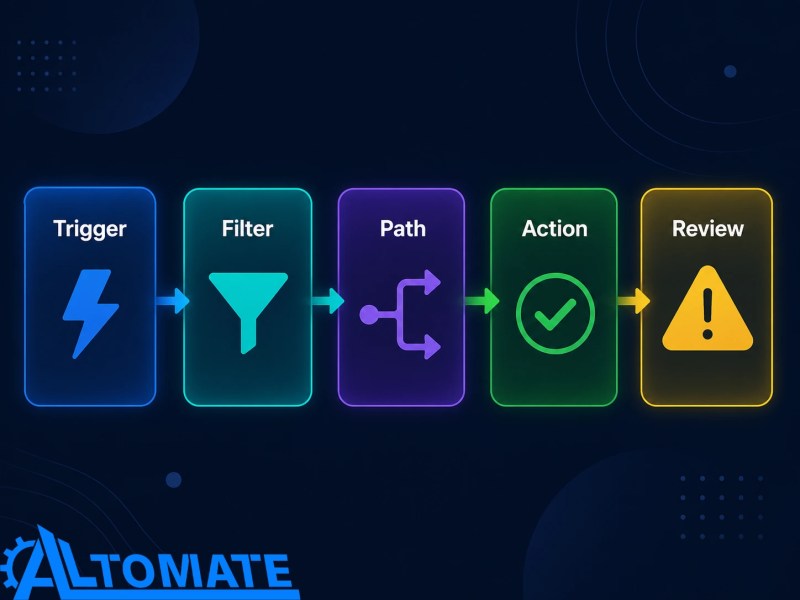
Sources: Zapier Help Center on triggers and actions in Zaps and filter and path rules in Zap workflows. Exception review is Alltomate’s workflow-design layer for handling records that should not continue automatically.
Most Zapier example workflows online show the trigger and action. The stronger ones show the decision points. That is the difference between a tutorial and a system. For the broader operating model behind this, see Alltomate’s guide to business process automation.
Example 1: New Lead Intake That Blocks Bad CRM Data
A common sales Zap starts when a lead submits a form, books a call, or responds to an ad. The simple version creates a new contact in the CRM and notifies the sales team. The problem is that simple lead intake breaks quickly when the same person submits twice, fields are missing, or the lead does not match the sales team’s qualification rules.
In implementations we have built for B2B services teams handling demo requests from paid ads, referral forms, partner pages, and webinars, the first failure point is rarely the form itself. It is the lack of validation between the form and the CRM. Once leads arrive from multiple channels, the CRM needs enough context to decide whether to update an existing contact, create a new record, assign an owner, or pause the submission for review.
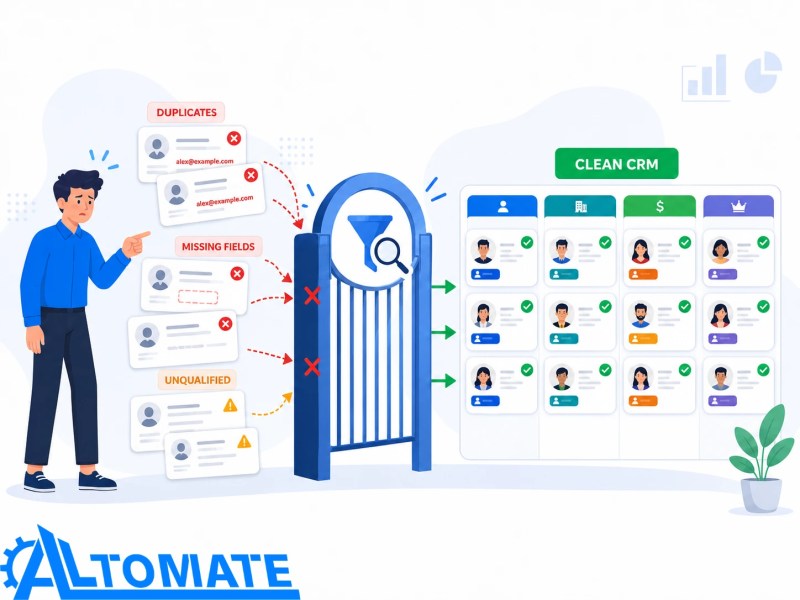
If every submission creates a fresh CRM contact, the sales team quickly ends up with duplicate CRM records, unclear ownership, and lead records that cannot be worked without manual cleanup. Salesforce also identifies duplicate records as a data-quality issue teams need to manage in CRM systems. A stronger Zapier workflow looks like this:
Source: Salesforce Trailhead — Improve Data Quality in Salesforce.
The lead intake workflow should validate and match the record before it creates anything new in the CRM.
- Trigger: new form submission, booking, or inbound lead event
- Find step: search the CRM for an existing contact by email
- Filter: continue only if required fields are present
- Path A: update existing contact if the email already exists
- Path B: create a new contact if no match is found
- Action: assign lead owner based on source, region, product interest, or company size
- Notification: send a Slack or email alert only for qualified leads
- Error handling: send incomplete records to a review sheet with source app, submission ID, missing field, and timestamp
The operational win is not just faster lead creation. It is cleaner CRM behavior. Sales reps do not waste time chasing records that should have been filtered out, and managers can trust that new leads have enough context to be worked. For broader inspiration around adjacent Zapier use cases, the Zapier automation examples article covers a wider set of automations beyond workflow-level logic.
Example 2: Marketing Follow-Up That Changes by Behavior
Marketing workflows often fail because they assume every lead deserves the same next step. Someone who downloaded a checklist, someone who requested pricing, and someone who attended a webinar may all enter the same database, but they should not receive the same follow-up.
This is where Zapier Paths become useful. Instead of building one long automation that tries to handle every scenario in a straight line, the workflow branches based on what the lead did.
The Zap starts the moment lead activity comes in from a landing page, webinar platform, or email form. Before anything branches, a formatter step standardizes campaign names and source values, so the same intent signal does not get read three different ways depending on which tool sent it.
How the lead’s action decides the path
- Requested a consultation
- Create a CRM task and alert sales right away.
- Downloaded a resource
- Add the lead to a nurture list — no sales alert needed yet.
- Attended a webinar
- Update campaign engagement on the existing CRM record.
- Already exists in the CRM
- Update the existing record instead of creating a duplicate.
Records with unclear source data, missing campaign names, or unmatched CRM contacts do not get forced down one of these paths. They get flagged for manual review instead, so a bad match does not quietly become a bad CRM update.
The branching logic is what keeps each lead from receiving the same follow-up regardless of intent.

Example 3: Operations Handoff That Keeps Work From Getting Lost
Operations workflows usually break in the space between tools. A customer pays an invoice, a project is approved, or a service request is marked ready, but the next team does not see the update until someone manually checks the source system.
For a home-services or field-service company, this might happen when a booked job is marked approved, paid, or ready for scheduling. Sales sees the customer as closed, billing sees the invoice as handled, but operations still needs a task, job folder, technician note, or project record. If the handoff depends on someone remembering to copy the update across tools, the process is already fragile.
One Zapier workflow example for operations is a handoff from sales or billing into project execution:
- Trigger: deal marked closed, invoice paid, or job status updated
- Find step: locate the customer or project record in the work-management tool
- Filter: continue only when payment, approval, or required status is confirmed
- Action: create a project, task, folder, or job record
- Action: notify the assigned operations owner with the job name, customer name, status, and next action
- Action: update the CRM or source system with the handoff status
- Error handling: log failed handoffs with the failed step, source record, destination app, owner, and reason for failure
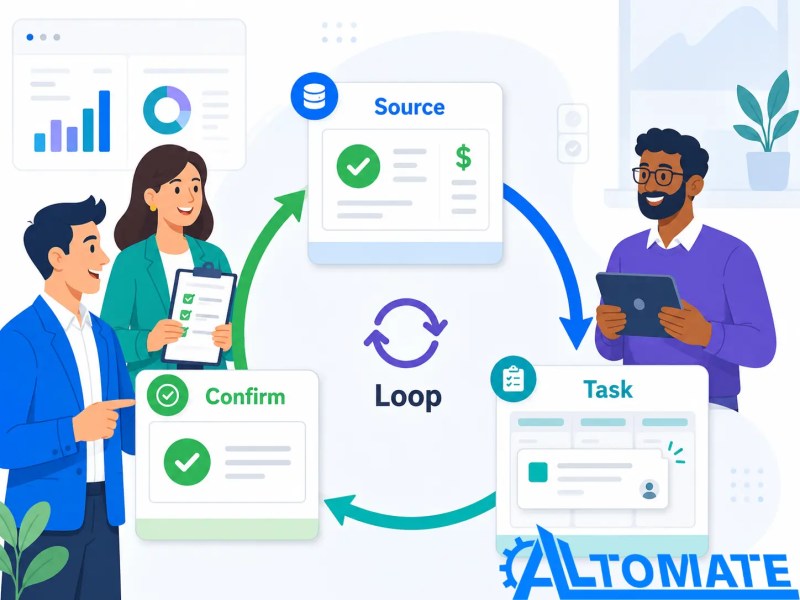
The important part is the return update. Many teams create a project task but never send confirmation back to the original system. That leaves sales, billing, or admin staff wondering whether the handoff actually happened. In a reliable workflow, the system updates both the destination tool and the source of truth.
The confirmation step closes the loop so the source system shows that the handoff actually happened.
This is the same class of operational problem shown in Alltomate’s Jobber Zapier integration case study: the value comes from connecting a work-management process to the next operational step, instead of relying on staff to manually bridge the gap between systems.
Your best workflow is rarely a copy-paste Zap. Map the trigger, filter, path, and exception rules first, then build around those decisions. For workflows that need conditional routing, CRM updates, and exception handling, explore custom Zapier automation.
Example 4: Support Escalation That Routes Exceptions Instead of Every Ticket
Support automation can become annoying fast when every ticket triggers the same alert. A new support request does not always need a manager, a Slack notification, and a CRM update. Some tickets only need standard processing. Others need escalation because they involve an unhappy customer, a high-value account, a billing issue, or a missed service-level expectation.
A consistent pattern we see in support workflows for account-based teams is that the first version sends every ticket to the same place, whether it is a billing question, an urgent service issue, or an unmatched sender email. That feels safe at first, but it trains the team to ignore notifications because most of them are not urgent. The better workflow uses filters and paths to separate normal tickets from exceptions before the alert reaches the wrong person.
For a support team managing both regular inquiries and account-sensitive issues, the Zap should not simply announce every incoming ticket. It should inspect the category, customer record, urgency, and account status, then decide whether the ticket needs escalation or standard processing.
- Trigger: new ticket, form response, email, or helpdesk event
- Filter: continue only if the ticket matches escalation criteria
- Path A: billing concern goes to finance or account management
- Path B: urgent service issue goes to the support lead
- Path C: high-value customer issue creates a CRM note and task
- Path D: unmatched customer account goes to a review queue instead of being assigned blindly
- Action: send a targeted notification with the reason for escalation
- Error handling: log tickets that cannot be matched to an account, including ticket ID, sender email, category, and lookup result
The escalation workflow should separate normal tickets from true exceptions before the team receives an alert.

The key is to include the reason for the alert. “New support ticket” is weak. “Escalated billing issue from active customer account” gives the recipient enough context to respond. Automation should reduce interpretation work, not simply move messages faster.
What These Examples Need Before They Become Reliable Zaps
These Zapier workflow examples are useful starting points, but copying them without a process check can create more cleanup than value. Before building, define the system boundaries.
Start with the source of truth. If the CRM owns customer status, do not let a spreadsheet quietly override it. If the project management tool owns delivery status, do not let the CRM become a second unfinished task board. A Zap should move data between systems while respecting which tool is authoritative for each field.
Then decide which failures need human review. Not every error needs a panic alert. Some records can go to a review queue. Some should stop immediately. Some should retry. Zapier’s advanced error-handling settings also give builders options for how a Zap should behave when a step runs into an error. This is especially important when multi-step Zaps touch customer records, billing events, or operational handoffs. If you are estimating how many runs a process might use, the distinction between tasks and Zaps matters, and the Zapier tasks vs Zaps explainer can help clarify that planning layer.
Source: Zapier Help Center — Decide how your Zap handles errors with advanced settings.
Finally, test with real edge cases. Use duplicate contacts, missing fields, outdated statuses, unclear lead sources, mismatched account names, and destination app errors. Zapier recommends testing Zap steps before publishing, but production-ready testing should go beyond clean sample data. A Zap that only works with perfect sample data is not ready for daily operations.
Source: Zapier Help Center — Test Zap steps.
Final Answer: The best Zapier workflow examples are not just app-to-app connections. They are small operating systems with triggers, filters, paths, updates, and exception handling. Sales teams can use them to clean lead intake, marketing teams can route follow-up by intent, operations teams can prevent handoff gaps, and support teams can escalate only the tickets that truly need attention. The workflow becomes reliable when it reflects the business rule behind the task.
Need a Zapier workflow that works with real business rules?
If your workflow needs filters, paths, CRM updates, handoffs, and exception handling, Alltomate can help map and build the system before messy data creates cleanup work.
Related Resources
FAQs
What is a good first Zapier workflow to build?
A good first workflow is usually a lead intake or internal notification process with clear rules. Avoid starting with a workflow that touches too many systems at once. Build one trigger, one validation rule, one destination, and one exception path before expanding.
Should one Zap handle every department workflow?
Usually, no. One Zap can handle related branches if the trigger and data structure are shared, but separate departments often need different ownership, error handling, and reporting. A large all-in-one Zap can become harder to test and troubleshoot than several focused Zaps.
When should I use Zapier Paths instead of separate Zaps?
Use Paths when the workflow starts from the same trigger but needs different outcomes based on conditions, such as lead type, ticket category, or deal stage. Use separate Zaps when the trigger, owner, destination system, or failure handling is meaningfully different.
Source: Zapier Help Center — Add branching logic to Zap workflows with Paths.
Where should error handling go in a Zapier workflow?
Error handling should be designed before the Zap goes live, not added only after failures happen. At minimum, define what happens to missing fields, duplicate records, failed lookups, and destination app errors. Some issues should stop the Zap, while others should go to a review queue, and Zapier also provides advanced settings for how Zaps handle errors.
Source: Zapier Help Center — Decide how your Zap handles errors with advanced settings.
How do I know if a Zapier example workflow is ready for real data?
It is ready when it has been tested with realistic edge cases, not just clean sample records. Zapier recommends testing Zap steps before publishing, but production-ready testing should also include duplicate contacts, missing fields, old statuses, invalid emails, unclear ownership rules, and records that should not pass the filter. If the workflow handles those cases predictably, it is much closer to production-ready.
Source: Zapier Help Center — Test Zap steps.
About the author

Miguel Carlos Arao is the Founder & CEO of Alltomate,
a Zapier Certified Platinum Solution Partner. He builds multi-step Zaps, path-based routing, and exception handling for client teams, and the patterns in this article come directly from troubleshooting real lead intake, operations handoff, and support escalation systems across sales operations and field-service engagements.

Built by a certified Zapier automation partner
Explore more at
Zapier consulting services,
Zapier webhook guide, and
why hire a Zapier expert.