
Published on July 1, 2026
For workflow setup, see our Zapier automation platform, or request a free Zapier setup review.
Quick Answer: A Notion database that won’t show up in Zapier’s dropdown almost always comes down to one of four causes: the database wasn’t individually shared with the Zapier integration through Notion’s “Add connections” menu, the database is nested as a subpage rather than sitting at the top level of a shared parent, you’re working across multiple Notion workspaces and the Zapier connection you’re using only has visibility into one of them, or Notion’s 2025 API update changed how databases are identified and your Zapier connection hasn’t caught up. Fixing it means checking all four, not just re-authenticating and hoping.
Table of Contents
- Why the Dropdown Is Empty Isn’t a Zapier Bug
- The Sharing Permission Every New Database Misses
- When the Database Is Nested Under Another Page
- Multi-Workspace Setups Split What Each Connection Can See
- When It’s Not a Permissions Problem At All
- The Diagnostic Order That Actually Saves Time
- What Changed in Notion’s Sharing UI (and Why Old Fixes Stop Working)
A Notion database that already worked can suddenly disappear from Zapier’s dropdown after it’s duplicated, moved, or recreated. In most cases, nothing is wrong with Zapier itself. The new database simply hasn’t been shared with the Zapier connection, and Notion doesn’t automatically inherit those permissions the way many people expect.
Why the Dropdown Is Empty Isn’t a Zapier Bug
The instinct when a Notion database won’t appear in Zapier’s dropdown is to blame the Zapier-Notion connection itself — disconnect, reconnect, hope it resolves. It usually doesn’t, because the integration itself is working exactly as designed. Notion treats its API connection as page-and-database-scoped, not workspace-scoped. Connecting your Notion account to Zapier automation software grants Zapier access to your workspace in principle, but Notion still requires each individual database to be explicitly shared with that connection before it becomes visible to any external tool, Zapier included.
That distinction is the root of nearly every version of this problem. Notion’s own documentation on managing connections confirms this directly: a connection has to be added to the specific page or database where it will be active, not granted at the workspace level. It’s also why a “connect Notion to Zapier” tutorial from even a year ago can actively mislead someone today — Notion has changed where and how that sharing step happens more than once, and a stale screenshot walking through a menu that no longer exists sends people looking for the wrong button.
The permission model below illustrates why simply connecting your Notion account doesn’t automatically expose every database to Zapier.

The Sharing Permission Every New Database Misses
This is the cause behind the vast majority of “it worked before but not for this new database” tickets. In Notion, open the database, use the “…” menu in the top right, and click Add connections to add your Zapier integration. Once it’s added, it will then show up in that same menu under a Connections heading. Your Zapier integration needs to be added there, on that specific database, separately from whatever connection you set up the first time.
In implementations we’ve set up for clients running project databases in Notion, this is the single most common reason a database goes missing mid-project — someone duplicates a template or spins up a new tracker for a new client or campaign, and the connection step gets skipped because it feels like it should already be covered by the original authorization. It isn’t. Every new top-level database is its own permission grant.
The sharing workflow below shows the exact step that most teams accidentally skip after creating or duplicating a new database.

If you’re building larger workflows, our real-world Zapier automation examples show how these database connections are commonly used in production.
When the Database Is Nested Under Another Page
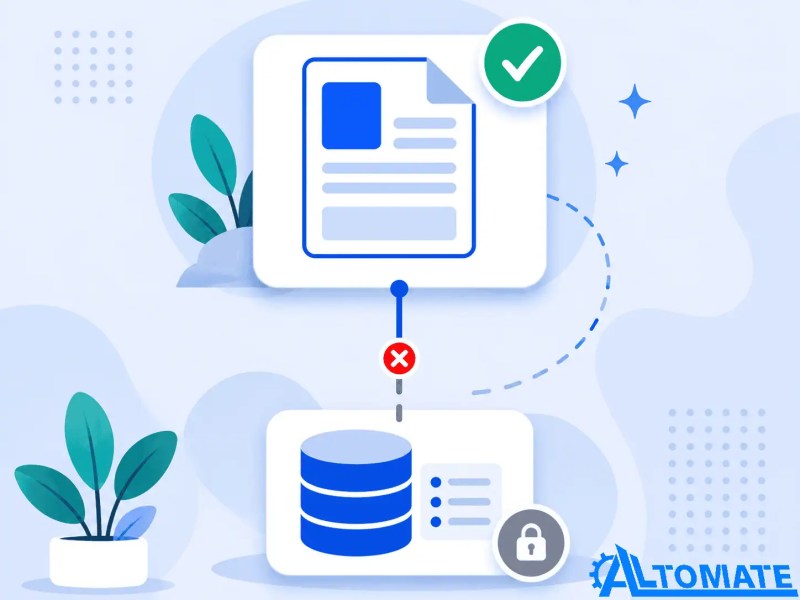
Sharing the parent page with Zapier feels like it should cover everything inside it. It doesn’t, if the database itself lives as a subpage rather than sitting at the top level of that shared page. Notion’s permission model shares the container you explicitly grant access to — it does not automatically cascade that grant down into every nested database underneath it the way a folder-and-file system would.
This shows up most often in workspaces that are organized hierarchically — a client folder containing a tasks database, a notes database, and a contacts database, all nested under one umbrella page. Sharing the umbrella page with Zapier’s connection can leave every database underneath it still invisible. The fix is to open the specific database directly and share the connection there, not on the parent it’s filed under.
The failure point below highlights where permission inheritance stops inside Notion’s hierarchy.
Multi-Workspace Setups Split What Each Connection Can See
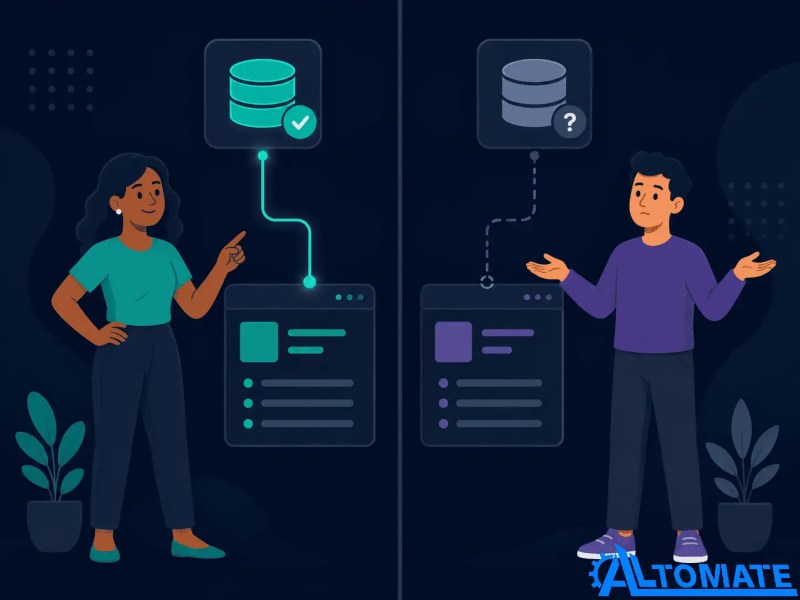
Anyone working across more than one Notion workspace — an agency managing separate client workspaces as part of broader business automation, or someone who has both a personal and a company workspace — runs into a version of this problem that looks identical to the sharing issue but isn’t. Zapier’s Notion connection is authorized against one workspace at a time. If the database you’re looking for lives in Workspace B and your active Zapier connection is authorized against Workspace A, it will never appear in the dropdown, no matter how well the sharing permissions inside Workspace B are set.
A consistent pattern we see in this setup is teams reconnecting their entire Notion account, assuming the fix is bigger than it actually is, when what’s actually needed is a second, separate Notion connection in Zapier’s app connections list — one authorized against each workspace. Zapier supports multiple accounts of the same app type; the trick is knowing to add a second connection rather than trying to force one connection to reach across workspace boundaries it was never authorized for.
The comparison below illustrates why one Zapier connection cannot automatically see databases stored in another Notion workspace.
When It’s Not a Permissions Problem At All
If all three sharing checks come back clean and the database still won’t show, the cause shifts from Notion’s permission model to Notion’s API itself. Notion shipped an API update (version 2025-09-03) that changed how databases are addressed internally — most operations now require a data source ID rather than the database ID that older integrations were built around, because Notion added support for multiple data sources inside a single database. Zapier’s own Notion integration had to be updated to handle this, and the visible symptom is identical to a sharing problem: the database just isn’t in the dropdown, or a “could not find database” error appears even though the sharing permissions are correctly set.
This is the one cause in this list that rebuilding the Zap can actually fix. If your workflow was created before Notion’s API changes, recreating the Notion step with the latest integration can resolve database detection issues that aren’t caused by sharing permissions. This is worth checking if the database previously worked and only recently stopped appearing, since that timing points more toward an API-related change than a permissions problem.
The shift below shows how a single database can now be split across multiple data sources, which is the structural change underneath this error.

The Diagnostic Order That Actually Saves Time
Working through all four causes at once, in this order, avoids the most common time sink — which is re-authenticating the whole integration first and only checking the actual database-level permission after that hasn’t worked.
- Open the database directly (not its parent page) and check Connections — is the Zapier integration listed there specifically?
- If the database is nested, confirm whether the share was applied to the parent instead of the database itself. Share the database directly.
- Check which Notion workspace is authorized under Zapier’s app connections. If you manage more than one workspace, confirm you’re either in the right connection or you’ve added a second one.
- If sharing and workspace checks are both clean, rebuild the Notion step using the latest Zapier integration so it uses Notion’s current API behavior.
- Only after all four are confirmed should you consider a full disconnect-and-reconnect, and even then, expect to redo the sharing step for every database you need — reconnecting the account does not restore individual database permissions.
Skipping straight to step four is the most common way people burn twenty minutes solving nothing.
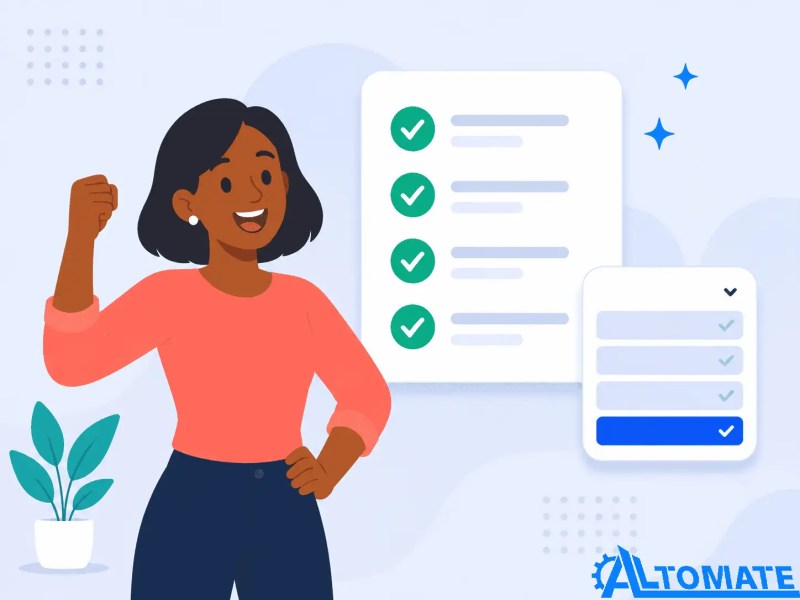
Following the diagnostic sequence below eliminates unnecessary troubleshooting and isolates the actual cause much faster.
What Changed in Notion’s Sharing UI (and Why Old Fixes Stop Working)
Notion has moved the connections/sharing controls within its own interface more than once as it’s built out its integrations ecosystem, which is exactly why a fix that worked six months ago can point you at a menu path that no longer exists. If a walkthrough you find references a step or button that isn’t where it says it should be, that’s usually a sign the source is dated rather than a sign you’re doing something wrong — check for the “Connections” option specifically inside the database’s own “…” menu, since that has been the more stable location recently, rather than hunting through general workspace settings.
This is exactly the kind of multi-cause, UI-shifting integration quirk that surfaces repeatedly when setting up client Notion workflows — not because Notion’s API is unreliable, but because its permission model is more granular than most people expect from a tool that otherwise feels like one connected workspace.
Final Answer: A missing Notion database in Zapier’s dropdown is usually a permissions problem, not a connection problem. Check database-level sharing first, then nesting, then which workspace your Zapier connection is authorized against, then confirm your Notion app version is current — in that order — before reconnecting the whole integration.
Need a reliable system?
Learn how our custom Zapier automation solutions eliminate recurring integration issues, or get a free business process audit.
Related Resources — or browse all Zapier automation guides.
FAQs
Why does my Notion database disappear from the Zapier dropdown after I already connected it once?
Each Notion database needs its own sharing grant with the Zapier connection. Connecting your account the first time authorizes Zapier generally, but it doesn’t automatically extend to every database you create or duplicate afterward.
Do I need to reshare every new Notion database with Zapier, or just the first one?
Every new top-level database needs to be shared individually through its own Connections menu. There’s no workspace-wide setting that covers future databases automatically.
Can Zapier see databases nested inside a Notion page instead of at the top level?
Only if the database itself is shared directly. Sharing a parent page does not cascade permissions down to databases nested underneath it.
Why does the same database show up in one Zap but not another using the same Notion account?
This usually points to multiple Notion workspaces. Each Zapier connection is authorized against a single workspace, so a Zap built with a different connection may not have visibility into the same database.
Does re-authenticating my Notion connection in Zapier fix a missing database?
Rarely on its own. Reconnecting refreshes the account-level authorization but doesn’t restore individual database sharing permissions — those need to be reset per database regardless.
How do I know if it’s an API issue and not a permissions issue?
If sharing, nesting, and workspace checks all come back clean but the database still won’t show, that’s the signal. The clearest confirmation is an error referencing a database ID rather than resolving normally — that pattern points to Notion’s 2025-09-03 API change rather than a sharing gap, and rebuilding the Notion step with the latest Zapier integration is the fix.
About the author

Miguel Carlos Arao is the Founder & CEO of Alltomate,
a Zapier Certified Platinum Solution Partner focused on Notion-Zapier integration workflows, including database sharing permissions, multi-workspace connection management, and dropdown field visibility.
The patterns in this article come directly from building and troubleshooting Notion-Zapier-related systems across client engagements in project management consulting and creative agency operations.

Built by a certified Zapier automation partner
Explore more at
learn more about the Zapier platform,
professional Zapier automation services,
how to choose the right Zapier consultant, and
request your free Zapier setup review.