
Published on August 10, 2026
Quick Answer: HubSpot sequences automation works best when a clearly qualified contact enters one focused sales sequence, receives personalized one-to-one emails and scheduled task reminders, and exits as soon as a reply, meeting, bounce, unsubscribe, or another valid stop condition occurs. Build the sequence first, test its timing and personalization manually, then automate enrollment only when your account supports it and the qualifying data is reliable.
Table of Contents
- What HubSpot Sequences should automate
- Check access before building
- Build one sequence around one sales decision
- Choose manual or automated enrollment
- Stop outreach when the contact state changes
- Test before enrolling a larger audience
- Measure replies, meetings, and risk signals
- Fix common sequence failures
- Frequently asked questions
HubSpot sequences automation can reduce repetitive sales follow-up without turning every prospect interaction into a generic campaign. The tool combines scheduled one-to-one emails with manual email, call, and general task reminders. The real implementation challenge is not adding steps. It is deciding who should enter, which sender owns the outreach, when the sequence must stop, and what the team should learn from the results.
What HubSpot Sequences Automate—and What Workflows Should Control
Sequences are designed for personalized sales or service outreach. A sequence can send automated emails and create reminders for manual emails, calls, or other actions. HubSpot Workflows serve a different purpose: they evaluate CRM conditions, update records, route work, and, where the subscription supports it, enroll or unenroll contacts from sequences.
| Tool | Best use | Common mistake |
|---|---|---|
| Sequences | Personalized one-to-one prospect follow-up | Treating the sequence like an unrestricted bulk campaign |
| Workflows | Qualification, routing, record updates, and supported enrollment logic | Enrolling contacts before the underlying CRM data is trustworthy |
| Marketing emails | Subscription-based marketing communication to eligible audiences | Using a sales sequence to replace a marketing subscription strategy |
The operating split is shown below, with each tool responsible for the work it is designed to control.
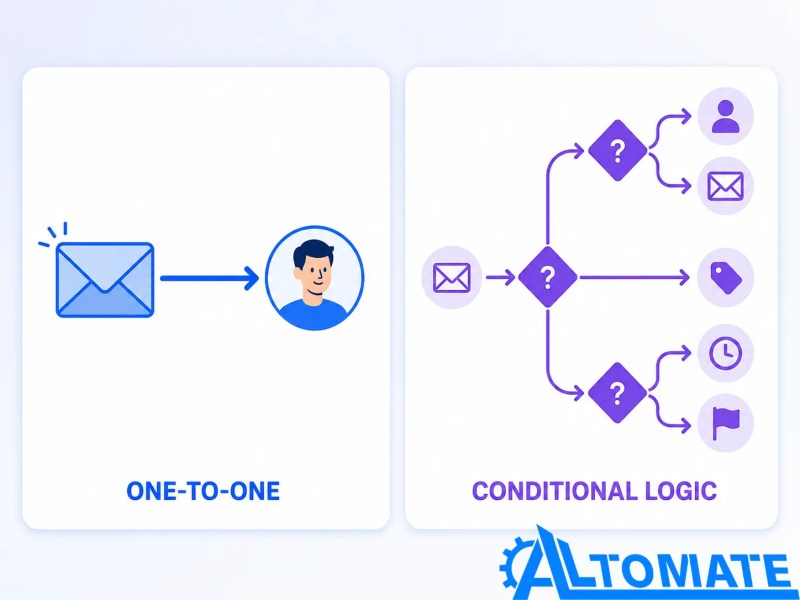
Keep lifecycle management outside the sequence itself. Sequence enrollment does not automatically update the contact’s Lifecycle stage property. If the sales process requires a stage change, manage it separately through controlled HubSpot lifecycle-stage automation or another appropriate CRM workflow. Define any HubSpot lead-scoring rules before using them as enrollment criteria, because a sequence cannot compensate for a contact being classified incorrectly.
Check HubSpot Access Before Designing the Sequence
HubSpot currently lists Sequences under Sales Hub Professional or Enterprise and Service Hub Professional or Enterprise. The sender needs an assigned Sales or Service seat, a connected personal inbox, and the required Sequences and Communicate permissions. Bulk enrollment requires its own permission. HubSpot also applies daily sequence-email limits based on the subscription.
Access affects the design. A sequence shared with the sales team can still fail if the selected sender cannot access it or has no connected inbox. HubSpot also allows each contact to be active in only one sequence at a time. Verify these requirements in HubSpot’s current sequence enrollment documentation before promising fully automated enrollment.
Build One Sequence Around One Sales Decision
Start with one audience and one conversion goal. “Book a discovery call after a qualified demo request” is specific. “Nurture all leads” is not. A narrow goal makes every email, delay, task, and exit condition easier to evaluate.
Set Up the Sequence in HubSpot
- Go to Sales > Sequences, select Create sequence, and start from a template or from scratch.
- Add automated email steps and manual email, call, or general task reminders in the order the rep should complete them.
- Configure the delay, permitted send times, email threading, and task timing for each step.
- Review the Automation settings available in the portal and define appropriate enrollment or unenrollment triggers.
- Save the sequence, enroll a controlled test contact, and inspect every scheduled step before using it with a larger audience.
HubSpot’s interface and available automation options vary by subscription, so confirm the labels and features shown in the current portal before documenting the process for the team.
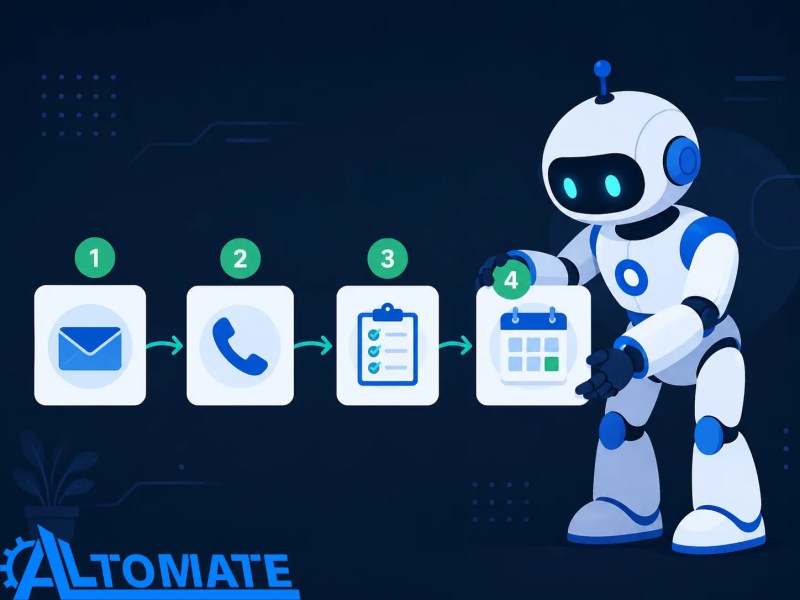
Use the flow below as a check that every step supports the same sales decision from enrollment through exit.
Design the Outreach Around the Goal
- Define eligibility. Require the properties that make outreach appropriate, such as lead status, owner, business email, source, and consent or another valid communication basis.
- Add the first email. State why the message is relevant to that contact and make the desired next action clear.
- Mix automation with human tasks. Use call or manual-email reminders where context or judgment matters.
- Set deliberate delays. Give the contact enough time to respond and account for the sender’s working schedule.
- Choose threading intentionally. A reply-style follow-up preserves context, while a new thread can support a genuinely different message angle.
Use personalization tokens only when the source property is populated and trustworthy. A shorter email with verified company and role context is safer than a heavily personalized template that exposes blank fields, incorrect titles, or stale CRM data. HubSpot’s current sequence editor documentation explains automated-email, manual-email, call, and general-task steps.
Choose Manual Enrollment Until the Qualification Logic Is Proven
Manual enrollment is the safer starting point. It lets a rep confirm the contact, sender, timing, and personalized fields before the first step executes. Once the team can explain exactly why every enrolled contact belongs in the sequence, automation becomes reasonable.
Illustrative example: a qualified demo request
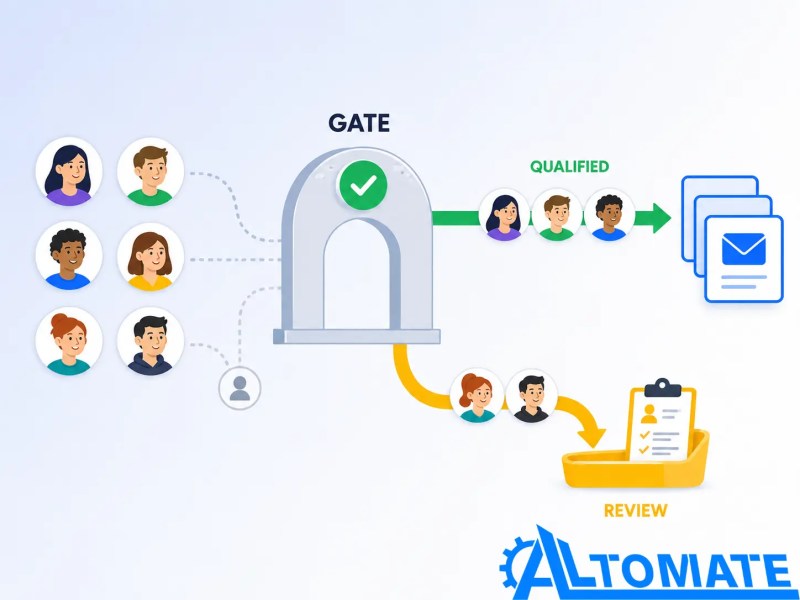
A B2B contact submits a demo form. A workflow checks that the email is valid, the request matches the target region, the contact is not already active in a sequence, and a contact owner exists. A qualifying record enters the demo follow-up sequence from that owner. A record missing ownership goes to a review queue instead of receiving an email from an arbitrary sender.
The qualification gate below shows why an approved record should be validated before outreach begins.
HubSpot documents contact-based workflow enrollment as an Enterprise capability, while certain sequence-level enrollment automations are also available through the sequence tool for Professional accounts. The first sequence step executes immediately after workflow enrollment, even when the contact’s time zone is used for later steps. Confirm the exact options in your portal before relying on this behavior.
A related Alltomate recruitment lead-generation automation case study demonstrates why validation, CRM synchronization, segmentation, and human review should happen before outreach. That project used HubSpot as the CRM and Instantly for outreach, so it supports the operating pattern rather than proving a HubSpot Sequences implementation.
When enrollment crosses multiple systems
If ownership, reply status, and suppression data move between HubSpot and separate outreach tools, a native sequence alone may not control every state. Review how follow-up sequence automation coordinates enrollment, suppression, and CRM synchronization before scaling.
Stop Outreach When the Contact State Changes
A reliable HubSpot automated email sequence is defined as much by its stop rules as its send steps. Depending on the enabled settings and account features, HubSpot can automatically unenroll contacts after a reply, qualifying meeting, unsubscribe, bounce, workflow action, configured automation trigger, or sequence completion. Unenrollment stops future steps; it does not retract emails already sent.
The stop logic below shows how a valid engagement signal should prevent future sequence steps.

Keep reply and meeting unenrollment enabled unless the sales process has a documented reason not to. Company-level unenrollment requires more care: one person’s reply may stop outreach to colleagues at the same company. That can prevent duplicate contact, but it can also end legitimate parallel conversations. Review HubSpot’s current unenrollment behavior before choosing the scope.
Data quality remains a precondition. Duplicate contacts, stale ownership, or delayed lifecycle updates can produce conflicting decisions around enrollment. The wider Lead Management Automation Guide covers the routing and governance layer that should surround follow-up.
Test Personalization, Timing, Tasks, and Exit Conditions
Do not test only whether an email sends. Use a small controlled set of internal or approved test records that represents the conditions the automation must handle:
- A fully qualified contact with every personalization field
- A contact missing one nonessential personalization value
- A contact that should be blocked from enrollment
- A reply or meeting event that should stop future steps
- A sender who should receive the manual tasks
Confirm the actual sender, first-step timing, follow-up delays, thread behavior, meeting link, task owner, and unenrollment result. Also review scheduled sends before increasing volume. Editing an active sequence does not always behave like editing a fresh template, so check how changes affect current enrollments rather than assuming every active contact receives the revision.
Measure Replies and Meetings Without Ignoring Risk Signals
Enrollment volume is not success. HubSpot’s sequence reports can show total enrollments, reply rate, meeting rate, no response, and email engagement measures such as opens, clicks, bounces, and unsubscribes. Some reporting options vary by subscription.
Optimize from the conversion goal backward. If the goal is a meeting, compare meeting rate and reply quality by sequence, sender, audience, and enrollment period. Use step-level performance to find where interest falls. Treat a rising bounce or unsubscribe rate as a data-quality or relevance warning, not a reason to send more steps. HubSpot’s sequence performance documentation lists the current reports and metric definitions.
Why HubSpot Sequence Automation Fails Even When the Emails Look Fine
| Failure | Why it happens | Control |
|---|---|---|
| Enrollment fails | Missing seat, permission, inbox connection, sender access, email address, or remaining send capacity | Validate access and sender readiness before enrollment |
| The wrong contact enters | Qualification relies on incomplete or stale CRM properties | Add required-field, ownership, and suppression checks |
| Outreach continues after engagement | Reply or meeting signals do not match the configured stop behavior | Test automatic unenrollment and review exceptions |
| Personalization sounds automated | Tokens substitute fields without adding relevant context | Use fewer verified fields and retain manual review for sensitive prospects |
The failure patterns below make clear that sequence issues often originate in the surrounding CRM controls, not the email copy.

Automation is unnecessary when a rep can safely manage a small, high-value list with direct follow-up. It becomes useful when eligibility, ownership, timing, and stop conditions are repeatable enough to encode. Keep human review for ambiguous replies, strategic accounts, conflicting ownership, and any record whose communication basis is unclear.
Key Takeaway: A dependable HubSpot sequence is ready to scale only when the right contact enters under the right sender, every personalization field resolves correctly, manual tasks reach the responsible rep, and engagement reliably stops future outreach. Automate enrollment after those controls are proven—not before.
Build a governed HubSpot follow-up process
Alltomate can help connect qualification, ownership, sequence enrollment, stop conditions, and reporting into one controlled lead process.
Related Resources
Frequently Asked Questions About HubSpot Sequences Automation
Can HubSpot automatically enroll contacts in a sequence?
Yes, but the available method depends on the subscription. HubSpot documents contact-based workflow enrollment for Enterprise accounts and certain sequence-level enrollment automation for Professional accounts. The selected sender still needs the required seat and a connected personal inbox.
What is the difference between HubSpot Sequences and Workflows?
Sequences manage personalized sales or service outreach through automated emails and manual task reminders. Workflows evaluate CRM conditions and automate record actions, routing, and supported sequence enrollment or unenrollment.
Does HubSpot stop a sequence when a contact replies?
Depending on the enabled settings and account features, HubSpot can automatically unenroll a contact after a reply, qualifying meeting, unsubscribe, bounce, workflow action, configured automation trigger, or sequence completion. Review exceptions such as out-of-office behavior during testing.
Can one contact be enrolled in multiple HubSpot sequences?
No. HubSpot currently allows a contact to be active in only one sequence at a time. The contact must be unenrolled from the current sequence before entering another one.
About the author

Miguel Carlos Arao is the Founder & CEO of Alltomate, a Zapier Certified Platinum Solution Partner focused on lead qualification, CRM workflow logic, and controlled sales follow-up. His work centers on designing automation that keeps ownership, outreach status, and lead data synchronized across connected systems.

Built by a certified Zapier automation partner
Explore more in our guide to lead management automation,
follow-up sequence automation solution,
and lead management automation support.