
Published on August 1, 2026
Quick Answer: ClickUp notification automation works best when each rule connects one meaningful event to a defined recipient, delivery channel, and required response. Use personal notification settings for individual awareness, Workspace Automations for repeatable team routing, and Slack, email, or webhooks only when the alert needs visibility or action outside ClickUp.
Table of Contents
- Separate personal settings from team automation
- Design the routing decision before the rule
- Choose triggers that signal a real decision
- Match the alert to the right channel
- Know when native ClickUp routing is not enough
- Diagnose missed and duplicate notifications
- Give every automation an owner
- Frequently asked questions
ClickUp notification automation is not simply a matter of turning on more alerts. The real job is deciding which task event deserves attention, who must respond, where the message should appear, and what happens if nobody acts. Without that design, a team can receive dozens of ClickUp task notifications and still miss the one deadline, approval, or blocked dependency that matters.
This is a narrower problem than general business process automation. The workflow already exists in ClickUp; the challenge is creating a reliable signal system around it without turning every update into noise.
Separate Personal ClickUp Notification Settings From Team Automation
A common wrong assumption is that personal notification preferences and Workspace Automations solve the same problem. They do not. Personal settings control what one user receives through ClickUp Inbox, email, browser or desktop notifications, and mobile notifications. Slack activity messages are configured separately through the Slack integration. ClickUp allows users to adjust alerts for events including assignments, mentions, status changes, due-date changes, overdue tasks, and reminders in their own notification settings.
Workspace Automations apply repeatable logic to tasks within a specific Space, Folder, Subfolder, or List. They use a trigger, optional conditions, and one or more actions. That makes them appropriate when the business needs a consistent outcome, such as notifying an operations manager whenever a high-priority task becomes blocked, regardless of each person’s private settings.
Use personal settings for awareness. Use Automations when the notification is part of the operating process. A private preference cannot guarantee that another person, team, or channel receives a required escalation.
Design the Routing Decision Before Building the Rule
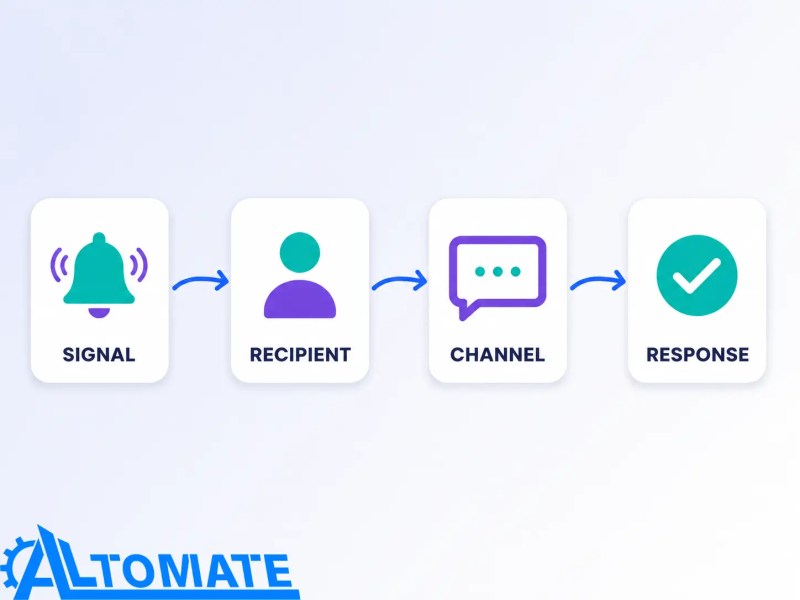
A common failure pattern in ClickUp notification automation is treating every task event as equally urgent. A new assignee, a changed due date, an overdue task, and a blocked approval do not carry the same operational risk. Before opening the Automation builder, define the four parts of the routing decision.
| Decision | Question to answer | Example |
|---|---|---|
| Signal | What changed? | Due date arrives while status is not Complete |
| Recipient | Who owns the next decision? | Task assignee first, team lead only after escalation |
| Channel | Where can the recipient act? | ClickUp comment for action, Slack for shared visibility |
| Response | What must happen after delivery? | Update the task, approve the work, or reassign ownership |
The visual below summarizes the routing sequence as one system: identify the signal, pass it to the correct recipient, choose the action channel, and define the required response.
If the response is unclear, the alert is only information. It may still be useful, but it should not be designed like an escalation. This distinction prevents custom notifications from becoming a second task list that nobody owns.
Choose Triggers That Signal a Real Decision
Start with events that change responsibility, timing, or risk. Task assignments should notify the person expected to begin work. Status changes should alert the next owner only when the new status creates a handoff. Due-date reminders should be early enough for recovery, while overdue alerts should identify who can remove the blocker rather than repeating the same message to the original assignee.
The comparison below separates routine task activity from the events that justify an escalation.

ClickUp’s Automation triggers can be filtered with conditions, and date-based rules use the timezone of the person who created the Automation. When a date has no time, ClickUp states that the Automation runs at 4:00 a.m. in that creator’s local timezone. That detail matters for distributed teams because an apparently correct ClickUp due date notification may arrive outside the recipient’s working hours.
Illustrative example:
A managed IT provider has client incidents in one ClickUp List. When an incident changes to Escalated, a condition checks that its priority is Urgent. The Automation assigns the duty manager, adds a ClickUp comment with the task link and required response, and sends one message to the incident Slack channel. Routine status changes stay inside ClickUp, while the high-risk transition becomes visible to the team that can act.
This pattern keeps the trigger specific, the condition meaningful, and the actions tied to one decision. It also avoids notifying a broad channel every time any task changes status.
Match Each Alert to the Channel Where Action Happens
The delivery channel should follow the work, not personal habit. ClickUp Inbox, task comments, and ClickUp Chat keep context close to the task. ClickUp email notifications are useful when recipients work primarily from email or sit outside the daily ClickUp workflow. Slack is better for shared awareness, but it can become noisy quickly if every routine update reaches a team channel.
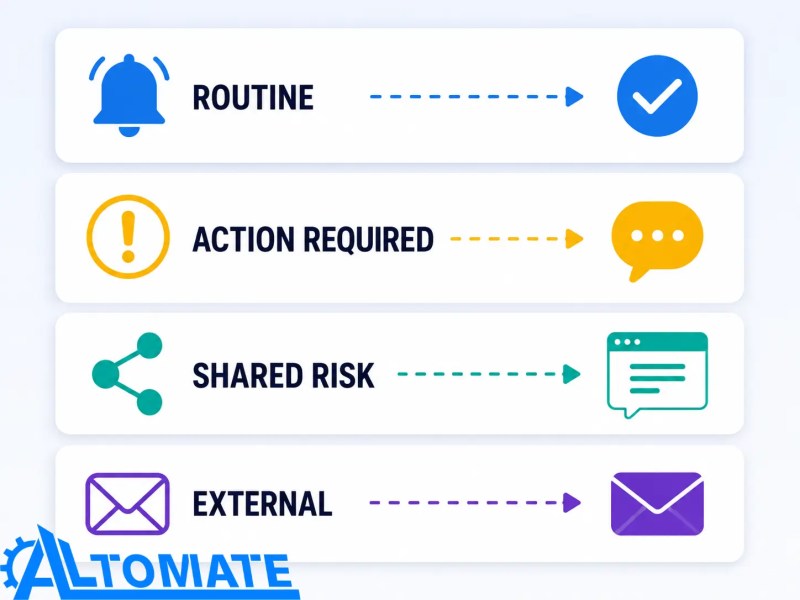
- Routine awareness: Keep it in ClickUp and let users tune personal settings.
- Action required: Use a task comment, assignment, or direct message that identifies the owner and expected response.
- Shared operational risk: Send a concise Slack or ClickUp Chat message to a deliberately chosen channel.
- External or formal communication: Use email only when the recipient and message content are appropriate for that channel.
The channel map below matches each alert type to the place where the recipient can most effectively respond.
ClickUp supports Slack activity notifications and Slack Automations, including sending messages to channels after the integration is connected. Personal connections and Workspace connections have different channel access behavior, so confirm the connection type before treating Slack delivery as a reliable control. If Slack is a core action channel, review the wider Slack and ClickUp integration requirements as part of the routing design. A good ClickUp Slack notification includes the task, reason for escalation, owner, and next action. A vague message such as “Task updated” moves the investigation burden to the reader.
Know When Native ClickUp Routing Is Not Enough
Native Automations are usually sufficient when the trigger, conditions, recipient, and action all live in ClickUp or a supported integration. Use Zapier, Make, or a webhook when the alert needs data from another system, multi-step transformation, recipient lookup, a delivery channel ClickUp does not support directly, or a response written back from an external tool. ClickUp can call a webhook from task activity and exposes test and activity information for that call.
When an external event must generate an email alert, a reliable webhook-to-email workflow also needs payload validation, retry handling, and delivery monitoring.
External routing also adds more failure points, including authentication, field mapping, rate limits, and downstream outages. Before expanding the stack, confirm that the native option truly cannot meet the requirement. When several applications must participate, use a documented multi-system connection design rather than chaining alerts together without ownership or recovery logic.
Diagnose Missed and Duplicate ClickUp Automation Alerts
When ClickUp notifications are not working, first determine whether the event never triggered, triggered but was skipped, completed without reaching the recipient, or reached a channel the recipient does not monitor. Those are different failures and require different fixes.
The diagnostic flow below separates missed alerts from duplicate ones so the team can test the correct failure path first.

If the alert never appeared
- Confirm the Automation was created at the correct Space, Folder, Subfolder, or List and applies to the intended tasks or subtasks.
- Check whether the condition was false, the task lacked the expected field value, or the date used an unexpected timezone.
- Verify that the email, Slack, or webhook connection is still authorized and can reach the chosen recipient or channel.
- Review Automation usage and plan limits. ClickUp pauses Workspace Automations for the month after the plan’s Action limit is exceeded.
If the Automation Activity tab shows a successful run but the recipient did not see the alert, the problem may be notification delivery rather than the Automation logic. Test the selected ClickUp channel, confirm the user’s notification preferences, and check browser, desktop-app, mobile-app, and operating-system permissions. Outdated app versions can also interfere with delivery, so include them in the notification troubleshooting check.
If the same alert appeared more than once
Duplicate alerts often appear when personal settings, native Automations, and Slack activity sync all report the same event. ClickUp also notes that multiple Automations with the same trigger fire at the same time. Inventory every route for that event, select one primary action channel, and remove the copies that add visibility without adding a different owner or response.
Also look for loops. One Automation may update a field or status that triggers another rule, which then changes the task again. ClickUp automation troubleshooting should trace the entire event sequence, not inspect each rule in isolation.
Give Every Notification Automation an Owner
An Automation is not reliable merely because it worked during setup. ClickUp’s Activity tab records Automation runs and allows filtering by location, date, and status, including successful, skipped, and failed runs. Use that evidence to distinguish a logic problem from a delivery or connection problem.
At higher task volume, ownership becomes more important because Action consumption increases and overlapping rules become harder to see. Name Automations by trigger, audience, and purpose; record the owning role; review failures on a defined schedule; and retire rules that no longer support a business decision. These controls address the same ownership and observability gaps behind many common integration mistakes.
The ownership model below shows how naming, monitoring, review cadence, and fallback handling turn a working rule into a dependable operating control.

A reliable implementation needs a fallback for critical alerts. That might be a recurring exception report, a monitored escalation queue, or a separate error notification. The fallback should expose failures without reproducing every successful task alert.
Are important alert failures still invisible?
If the team cannot tell when a rule is skipped, paused, or disconnected, the next step is to design monitoring around the workflow. Review Alltomate’s approach to automated workflow error monitoring.
Key takeaway: Effective ClickUp notification automation sends fewer, more actionable alerts. Separate personal awareness from team rules, trigger notifications only when responsibility or risk changes, route each message to the channel where someone can respond, and monitor skipped or failed runs. Add Zapier, Make, or webhooks only when the required logic or delivery genuinely extends beyond ClickUp.
Need ClickUp alerts to reach the right system and owner?
Explore automation integration services for reliable multi-channel routing
Related Resources
Frequently Asked Questions About ClickUp Notification Automation
How do I automate notifications in ClickUp?
Create a Workspace Automation with one trigger, any necessary conditions, and an action such as adding a comment, sending a channel message, sending an email, or calling a webhook. Choose the recipient and channel based on who must act, then test the rule with a representative task and review its run in the Activity tab.
Why are my ClickUp notifications not working?
The rule may be in the wrong Workspace location, its conditions may not match, a connection may be disconnected, the creator’s timezone may change date-based behavior, or the Workspace may have exceeded its monthly Automation Action limit. If the Activity tab shows a successful run, check the user’s notification preferences, app version, browser permissions, and operating-system settings because the failure may be in delivery rather than the Automation.
Can ClickUp send Slack notifications automatically?
Yes. After connecting Slack, ClickUp can sync selected activity to channels and use Slack Automations to send messages. Confirm whether the connection is personal or Workspace-level, verify access to the intended channel, and keep the message specific enough to identify the task owner and next action.
How do I stop duplicate ClickUp notifications?
List every route for the same event, including personal notification settings, ClickUp Automations, Slack activity sync, email, and external workflows. Keep one primary action channel and remove duplicate routes unless each copy serves a different recipient, decision, or escalation level.
When should I use Zapier, Make, or a webhook for ClickUp alerts?
Use an external automation tool or webhook when the alert depends on data from another application, requires transformations or multi-step logic, needs a recipient lookup, or must reach a destination unavailable through native ClickUp actions. Keep the rule native when ClickUp can meet the requirement with fewer failure points.
About the author

Miguel Carlos Arao is the Founder & CEO of Alltomate,
a Zapier Certified Platinum Solution Partner focused on business process automation, integration architecture, and reliable workflow systems.
This article applies those system-design principles to ClickUp notification routing, escalation, and monitoring.

Built by a certified Zapier automation partner
Explore more at
business automation consulting,
integration automation examples, and
manual versus automated workflows.