
Published on July 21, 2026
Quick Answer: Looping by Zapier takes a single trigger event containing a list — line items on an invoice, rows in a spreadsheet, products in an order — and runs every downstream action once per item in that list. It doesn’t create new tasks out of nothing; it multiplies the tasks your existing steps already use, once per iteration. Getting it right depends on how the list arrives (as a real array vs. a flattened text string), how many items you expect on a normal day, and whether Zapier’s iteration ceiling and per-run timeout actually fit your volume.
Table of Contents
- Why a Zap That Should Loop Through 40 Line Items Only Touches One
- Getting Line-Item Data Into a Shape Looping by Zapier Can Actually Read
- Every Loop Iteration Is a Task — and That Math Adds Up Fast
- Where Loops Hit a Wall: Limits, Timeouts, and Nested Loop Attempts
- The Errors That Show Up Once You’re Already Live
- When to Stop Looping and Reach for Something Else
- FAQs
Most people run into Looping by Zapier the same way: a Zap works perfectly in testing with one sample record, then goes live and quietly processes only the first line item on a real invoice with twelve. The loop isn’t broken — it’s usually being fed the wrong shape of data, or it’s hitting a limit nobody checked for before launch. If you’re still learning how Zapier’s automation model works, our complete guide to Zapier automation provides the broader foundation before diving into looping.
Why a Zap That Should Loop Through 40 Line Items Only Touches One
The Looping by Zapier action doesn’t inherently know your trigger contains a list. It needs to be pointed at a field that Zapier recognizes as an array — usually the line-item output of a trigger app like QuickBooks Zapier integration, an order platform, or a properly configured webhook payload. If you point the Loop action at a field that looks like a list to a human (“Widget A, Widget B, Widget C” as one string) but isn’t structured as one to Zapier, the Loop treats the whole thing as a single item and runs once.
In implementations we’ve built for field service companies, this is almost always where a “the loop only ran once” ticket traces back to: the trigger app returned line items as a flattened comma-separated string rather than a true array, and nobody caught it because the test record happened to have just one line item.
The comparison below shows why two values that look similar to a person produce completely different behavior inside a Loop step.

Getting Line-Item Data Into a Shape Looping by Zapier Can Actually Read
Before the Loop action ever runs, the trigger step needs to hand it a genuine array. Some apps do this natively — line items from invoicing or e-commerce triggers usually arrive pre-structured. Others don’t, and you’ll need a Formatter step to split a delimited string into a list, or a Code step to parse a nested JSON payload, before the Loop can iterate correctly.
This is also where Zapier Tables for structured data earns its place in a looping workflow: staging line items in a Table first — one row per item — gives you a clean, inspectable array to loop over, and makes it far easier to spot a malformed record before it reaches production than debugging inside a live trigger payload.
A wrong assumption we see often: teams assume that because a field displays as multiple lines in the app’s own interface, it will arrive at Zapier the same way. It frequently won’t. Checking the raw trigger data in test mode — not just the app’s UI — is the only reliable way to confirm the shape before building the Loop step around it.
Every Loop Iteration Is a Task — and That Math Adds Up Fast
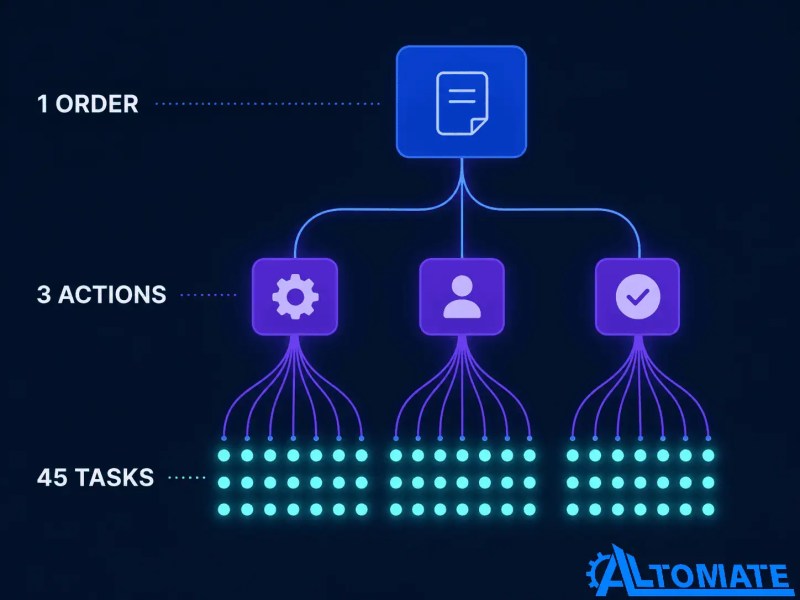
Looping by Zapier itself doesn’t consume a task, but every action step inside the loop runs once per item, and each of those runs counts against your plan the same as any other step, as documented by Zapier’s official documentation. A Zap with three actions inside a loop, processing an order with 15 line items, uses 45 tasks for that single order—not 3.
Every Loop Iteration Is a Task — and That Math Adds Up Fast
Looping by Zapier itself doesn’t consume a task, but every action step inside the loop runs once per item, and each of those runs counts against your plan the same as any other step, as documented by Zapier. A Zap with three actions inside a loop, processing an order with 15 line items, uses 45 tasks for that single order—not 3.
A consistent pattern we see once a client scales past a few dozen line items a day is that the loop itself was never the bottleneck — the task plan was. The loop worked exactly as designed; the account just wasn’t sized for how fast a handful of orders can burn through a monthly allotment once multiplied by line-item count. Understanding how how Zapier tasks differ from Zaps is worth doing before a loop-heavy Zap goes live, not after the first overage notice.
The branching structure below illustrates why task usage grows much faster than many teams initially expect.
Solutions like our custom Zapier automation solutions and business automation consulting services handle this data-shaping step before the loop is ever configured, so the iteration logic isn’t built on a guess.
Where Loops Hit a Wall: Limits, Timeouts, and Nested Loop Attempts
Looping by Zapier has a ceiling on how many items it will process in a single run, as outlined in Zapier’s Looping documentation, and Zaps overall have a per-run time limit. A loop iterating over a genuinely large list—hundreds of line items, not dozens—can hit that timeout mid-run, and the behavior isn’t always a clean failure. Depending on where in the sequence it stops, some downstream systems end up with a partially processed batch: the first 200 records updated, the rest silently skipped.
Nesting is the other place this breaks down. Looping by Zapier isn’t built to run a loop inside a loop cleanly—Zapier explicitly states that nested Looping steps aren’t supported. Teams that need to process, say, every line item within every order within a daily batch usually try to nest two Loop actions before discovering the structure doesn’t hold up, and end up needing to restructure the Zap around a single flattened list instead.
The illustration below highlights the two limits that usually appear only after workflows begin processing larger batches.

The Errors That Show Up Once You’re Already Live
The most common live-environment issues aren’t exotic — they’re the same handful of root causes surfacing in different disguises:
- The loop runs once instead of N times: the input field wasn’t a true array (see the input-prep section above).
- The loop stops partway through a batch: usually a timeout on an unusually large record, or a single malformed item in the middle of the list causing a downstream action to fail and halt the rest.
- Downstream duplicates: a loop re-running after a partial failure without checks for records already processed in the failed run.
- Line items missing fields: the source app occasionally sends a line item without a value in a field your downstream action requires, which fails silently unless a fallback value is set in the Formatter step ahead of the loop.
None of these are Looping by Zapier “breaking” — they’re the loop faithfully reflecting a data or capacity problem upstream of it.
When to Stop Looping and Reach for Something Else
Looping by Zapier is the right tool for moderate, predictable line-item volume — invoices with a handful of items, order confirmations with a short product list, or any workflow where the same action needs to be repeated for every item in a variable-length list. It’s overkill-adjacent, not overkill, at that scale, and swapping it out for something heavier when a simple loop would do just adds complexity without solving anything. If you’re looking for broader real-world automation patterns beyond looping, see our real-world Zapier workflow examples.
Where it starts to strain is high-volume or highly nested iteration: thousands of records a day, or genuinely nested lists that need loop-within-loop logic. At that point, two paths tend to work better than pushing the Loop action further. Zapier Paths is generally a better fit when your workflow branches into a fixed set of categories rather than processing a variable-length list, as detailed in Zapier’s documentation on Paths. For genuinely large or deeply nested batches, teams often end up migrating Zapier workflows to n8n, where loop nodes are built to handle nested iteration and higher volume without the same per-run constraints while keeping the rest of their stack on Zapier.
The comparison below summarizes when each approach is the better architectural choice.

Final Answer: Looping by Zapier processes a list by running your downstream actions once per item — but only if that list arrives as a true array, not a flattened string. Every iteration multiplies your task usage across however many actions sit inside the loop, so task planning matters as much as the loop logic itself. It handles moderate line-item volume well; once you’re dealing with thousands of records or genuinely nested lists, Paths or a move to n8n for that specific workflow usually holds up better than pushing a single Loop action further than it’s built for.
Need a reliable system?
Related Resources — or browse all Zapier articles in our automation blog.
FAQs
Why did my Zapier loop only process the first line item instead of all of them?
The field feeding the Loop action almost always wasn’t structured as a true array — often a comma-separated string that looks like a list visually but isn’t recognized as one by Zapier.
Does Looping by Zapier use extra tasks on top of my regular Zap tasks?
The Loop action itself doesn’t consume a task, but every action inside the loop runs once per item, so your total task usage for that run is your per-item action count multiplied by the number of items, consistent with Zapier’s documentation.
Can I nest one Loop action inside another in Zapier?
Not cleanly — Zapier doesn’t support nested Looping steps, so most teams that need that end up flattening the data into a single list or moving the workflow to a tool built for nested iteration.
What happens if a Zapier loop hits the Zap’s run-time limit partway through?
Behavior depends on where it stops, but a partial batch is possible — some items processed, the rest skipped — which is why large batches often need chunking or a different tool entirely.
Is there a maximum number of items Looping by Zapier can handle in one run?
Yes. Zapier documents an iteration ceiling for each Looping step, and very large lists are also constrained by the Zap’s overall per-run time limit rather than the Loop action alone.
About the author

Miguel Carlos Arao is the Founder & CEO of Alltomate,
a Zapier Certified Platinum Solution Partner focused on Looping by Zapier and multi-step line-item automation, including line-item array formatting, task consumption modeling, and iteration limit troubleshooting.
The patterns in this article come directly from building and troubleshooting Looping by Zapier-related systems across client engagements in field service invoicing and e-commerce order fulfillment.

Built by a certified Zapier automation partner
Explore more at
Zapier platform hub,
complete guide to Zapier automation, and
Zapier automation services.