
Published on July 7, 2026
Store operators usually come to Zapier already knowing they need it — the question is whether the out-of-the-box templates hold up once order volume grows. If you’re evaluating whether to build this yourself or bring in help, our Zapier automation services covers both paths, and a free business process audit will tell you which one you actually need.
Quick Answer: Zapier connects WooCommerce to CRMs, email platforms, fulfillment tools, and inventory systems using built-in triggers like New Order, Cart Abandoned, and Refund Created. The templates work fine for single-tool handoffs, but they start missing edge cases — partial refunds, split shipments, duplicate contacts — once a store runs more than a few hundred orders a month, which is usually when a custom-built workflow replaces the template.
Table of Contents
- What Zapier Actually Connects for a WooCommerce Store
- Where the New Order → CRM Zap Breaks Before It Reaches Your Sales Team
- Abandoned Cart Sequences: The Timing Problem Nobody Templates For
- Refund and Inventory Triggers Store Owners Forget Until Something Goes Wrong
- The WooCommerce Zapier Integration’s Real Limitations
- When Templates Stop Being Enough
WooCommerce doesn’t have a native automation layer — every order, cart, and refund event just sits in WordPress until something reads it. Zapier is usually the first tool store operators reach for to give that data somewhere to go, and for a lot of stores it’s genuinely enough. If you’re still evaluating the platform itself, our Zapier platform explains how it fits into a broader automation stack. For background on how Zapier works generally, our complete Zapier guide covers the platform fundamentals this page assumes. The gap shows up later: once you’re running order volume through a CRM, an email platform, and a fulfillment tool at the same time, the Zap that worked fine at 40 orders a month starts silently dropping edge cases at 400. This page walks through the common Zap templates, where each one tends to break, and what “outgrowing Zapier’s default WooCommerce integration” actually looks like in practice. If you’re exploring related automation topics, you’ll find additional implementation guides, comparisons, and tutorials on our Zapier automation blog.
What Zapier Actually Connects for a WooCommerce Store
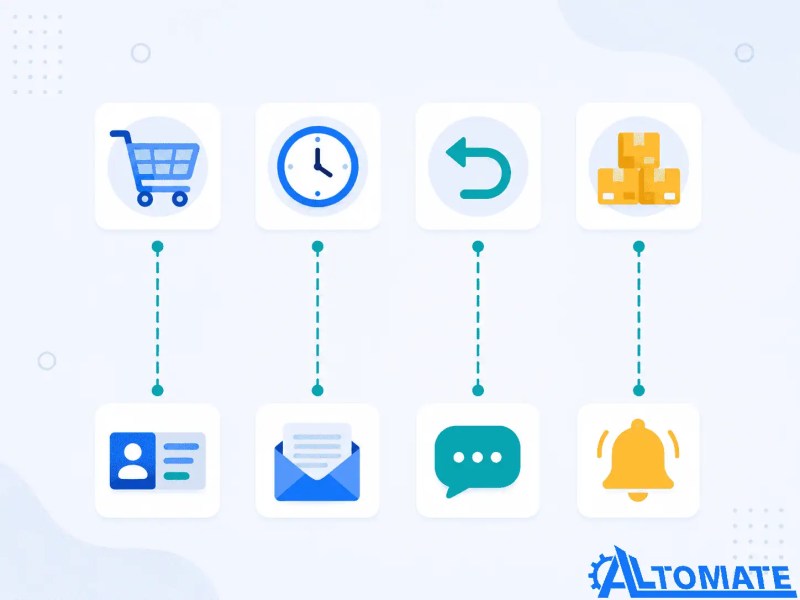
WooCommerce’s Zapier integration exposes a fixed set of triggers: New Order, Order Status Changed, Cart Abandoned, Refund Created, and Product Updated (stock level changes). Each of these can fire a Zap that pushes data into a CRM, an email tool, a spreadsheet, Slack, or a fulfillment system. The four setups we see most often are:
- New Order → new contact or deal created in a CRM
- Cart Abandoned → contact added to an email re-engagement sequence
- Refund Created → Slack alert to the ops or finance channel
- Low Stock (Product Updated) → notification or reorder task created
Each of these is a one-trigger, one-action Zap in its simplest form. That simplicity is exactly why they’re easy to set up and exactly why they start missing things once real order patterns — partial fulfillments, guest checkouts, multi-currency orders — enter the picture.
The basic trigger-to-destination relationships are shown below before additional filters, lookups, and branching logic are introduced.
Where the New Order → CRM Zap Breaks Before It Reaches Your Sales Team
The New Order → CRM Zap looks solved the day you build it: a customer checks out, a contact appears in HubSpot or Pipedrive, done. It stays solved right up until a returning customer places a second order under a slightly different email — a work address instead of a personal one, a typo, a guest checkout instead of a logged-in account — and now there are two contact records for the same person, one of them missing order history.
In implementations we’ve built for subscription-box and DTC stores, the CRM sync Zap is the first one that quietly breaks, because deduplication isn’t something the default WooCommerce trigger handles — it just fires “new order” data at whatever action step you’ve connected, with no lookup against existing contacts first. Left unmanaged, this fragments customer history exactly where a sales or retention team needs it to be unified: at the point of a repeat purchase or upsell conversation. If your CRM setup already has this problem, our HubSpot and Zapier integration guide walks through the lookup-before-create pattern that fixes it.
The failure below is typical of stores that rely on a simple create-contact action without checking whether the customer already exists.

Abandoned Cart Sequences: The Timing Problem Nobody Templates For
Most abandoned cart templates fire once: cart sits idle for X minutes, contact gets added to an email list. That single trigger treats a cart abandoned at 2pm the same as one abandoned at 2am — same delay, same message, same assumption that one nudge is enough.
A pattern we see consistently in new WooCommerce installs is treating the abandoned cart Zap as a single trigger instead of a sequence — one email goes out, and if it doesn’t convert, nothing else happens, because the Zap was never built to check back in. A cart abandonment sequence that actually recovers revenue needs staged timing (1 hour, 24 hours, 72 hours), different messaging at each stage, and a way to stop the sequence the moment the customer does complete checkout — none of which the default single-action template does on its own. Building that staging logic is where a cart-abandonment Zap turns from a one-step trigger into a small multi-step workflow.
The comparison below shows why a staged workflow consistently outperforms a single automation trigger.

Refund and Inventory Triggers Store Owners Forget Until Something Goes Wrong
Nobody builds the refund alert Zap on day one — it usually gets added after a refund goes unnoticed for a week and a customer escalates. The Slack alert version is simple to set up: Refund Created fires a message to the finance or ops channel. Where it gets more useful is when the Zap also checks refund reason and order value, so a $12 refund and a $1,200 refund don’t land in the same channel with the same urgency.
Inventory triggers have a similar blind spot. WooCommerce’s Product Updated trigger fires on any stock change, which means a low-stock Zap built without a threshold filter will notify someone every time inventory moves at all — including routine restocks — until the channel gets muted and the alert stops being useful the one time it actually matters.
The WooCommerce Zapier Integration’s Real Limitations
A few limitations are worth being upfront about before you build around them:
- Line-item detail (individual products in a multi-item order) doesn’t always pass through cleanly to downstream tools without extra formatting steps — most CRMs and spreadsheets expect one row per order, not per item.
- Partial refunds and partial shipments aren’t distinguished from full ones by the default triggers — a Zap built for “refund happened” doesn’t know if it was $5 or the full order.
- Guest checkouts often lack the customer metadata that logged-in-account orders carry, which breaks CRM matching logic downstream.
- High order volume (thousands of orders a month) can hit Zapier’s task-based pricing hard (see our Zapier pricing guide), since every triggered order consumes a task regardless of order size.
None of this makes Zapier the wrong tool for a WooCommerce store — for a lot of stores, it’s genuinely sufficient, and adding more automation than the order volume justifies is its own kind of waste. The limitations matter most once volume, order complexity, or the number of downstream tools starts to grow past what a single-trigger Zap was built to handle. If your workflows are becoming more complex, though, it’s worth comparing Zapier vs Make comparison before rebuilding everything.
Most of the fixes above are one-time setup work, not ongoing maintenance — worth knowing before assuming a custom build means a bigger commitment than it is. See a few working examples on our real-world Zapier workflow examples page.
When Templates Stop Being Enough
There are two ways to run WooCommerce automation on Zapier: stack pre-built templates one trigger at a time, or design the workflow as one connected system with filters, lookups, and conditional branches built in from the start. The template approach wins on speed — you can have a working Zap in twenty minutes. It loses on the edge cases described above, because each template was built in isolation, with no awareness of what the others are doing.
A furniture retailer we worked with had five separate WooCommerce Zaps running independently — order sync, abandoned cart, refunds, low stock, and a shipping notification — each built at a different point as a need came up. The problem wasn’t any single Zap; it was that none of them talked to each other, so a refunded order still triggered the shipping notification, and a restocked item still showed as low stock in Slack. Rebuilding it as one workflow with shared logic (checking order status before triggering downstream actions) resolved all five symptoms at once, because they were really one system-design gap, not five separate bugs.
The transition below illustrates how multiple disconnected automations become one coordinated workflow with shared decision logic.

Final Answer: Zapier’s WooCommerce templates handle the basics — order-to-CRM sync, abandoned cart emails, refund alerts, low-stock notifications — well enough for most stores to start. They start breaking down around duplicate contacts, partial refunds, guest checkout data gaps, and alert fatigue once order volume or tool count grows, at which point the fix is usually consolidating separate Zaps into one connected workflow rather than adding more isolated triggers.
Need a reliable system?
Related Resources
FAQs
Does Zapier work with WooCommerce out of the box, or do I need a plugin?
No — connecting WooCommerce to Zapier requires installing the paid WooCommerce Zapier Integration plugin from the WooCommerce.com Extension Store, along with HTTPS enabled and a working REST API on your store — it isn’t a native, plugin-free connection.
Can Zapier handle multi-currency WooCommerce orders correctly?
Zapier passes through whatever currency value WooCommerce sends, but it doesn’t convert currencies itself — if your downstream CRM or spreadsheet expects a single currency, that conversion has to happen as a formatter step inside the Zap.
Will a high-volume WooCommerce store run into Zapier’s task limits quickly?
Yes — every triggered event (an order, a cart abandonment, a refund) consumes a task regardless of order size, so a store running several thousand orders a month can burn through a mid-tier Zapier plan fast if every Zap is left unfiltered.
Is it better to use Zapier or a native WooCommerce automation plugin?
Native plugins are usually cheaper for single-purpose tasks (like email receipts), but Zapier wins once you need WooCommerce data to reach multiple external tools — a CRM, an email platform, and Slack — without building a separate integration for each one.
About the author

Miguel Carlos Arao is the Founder & CEO of Alltomate,
a Zapier Certified Platinum Solution Partner focused on WooCommerce-to-Zapier automation workflows, including order-to-CRM sync, abandoned cart sequencing, and fulfillment/inventory triggers.
The patterns in this article come directly from building and troubleshooting WooCommerce-to-Zapier automation systems across client engagements in ecommerce retail and subscription-box fulfillment.

Built by a certified Zapier automation partner
Explore more at
our Zapier guide,
Zapier consulting services, and
free business process audit.