
Published on June 10, 2026
If your team is handling support or task requests through manually filled Google Docs, there’s a better structure available. See how we set it up at automation integration services for Google Docs ticket workflows — or request a free process audit for your ticket workflow if you want a diagnosis first.
Quick Answer: Google Docs ticket template automation is a lightweight way to manage support requests, internal tickets, and task intake without a full helpdesk platform. It connects a structured form to a Google Doc template, generates a pre-filled ticket document, routes it to the right owner, and logs status in a tracking sheet or CRM. The system works best when the Google Doc is treated as the ticket summary, while the sheet or CRM remains the source of truth for tracking.
Table of Contents
- Why Most Google Docs Ticket Systems Fail Before They’re Built
- The Core Architecture: Form → Doc → Route → Track
- Where Ticket Routing Breaks Down
- Status Tracking Without a Dedicated Helpdesk Tool
- Template Design That the Automation Can Actually Use
- When to Upgrade Beyond Google Docs
- Final Answer
- FAQs
Google Docs is not a ticketing system. But for a large number of small operations teams, it functions as one — because the alternative feels like overkill. A shared folder of ticket docs, a naming convention someone made up, a Slack message when something’s urgent. It works until it doesn’t.
Automation doesn’t fix this by replacing Google Docs. It fixes it by building the system logic that Google Docs was never designed to provide: structured intake, document generation from a template, routing by ticket type, and status tracking that doesn’t require someone to remember to update a cell.
This article covers how that system is built, where it consistently fails, and what the correct structure looks like once the pieces are connected.
This setup is best for internal support requests, operations tickets, client task requests, HR intake, IT support forms, and lightweight service desk workflows where a team wants a generated Google Doc for context but still needs structured routing and tracking behind it.
Why Most Google Docs Ticket Systems Fail Before They’re Built
The failure isn’t technical. It happens at the design stage, before a single automation step is written.
Most teams build their Google Docs ticket template around what’s convenient to write — not what the downstream system needs to read. The template becomes a free-text document: a description box, a priority dropdown that nobody uses consistently, a “notes” section that balloons. When an automation tool tries to extract data from this, it has almost nothing to work with. The fields don’t map cleanly. The dropdown values are inconsistent. The document structure varies by who filled it in. If you’re newer to this layer, what document automation means before building ticket workflows provides the right foundation before building on top of it.
The correct starting point is the opposite direction: design the template around the routing logic. Before writing a single field, define what the automation needs to know to act — ticket category, priority, assigned team, requestor email, due date. Every field in the template is there because a downstream step depends on it. Fields that exist “for reference” without driving a workflow decision are noise.
In implementations we’ve built for operations teams, this upstream design problem is present in nearly every case where the automation keeps breaking. The document template was inherited from a manual process, and the automation was bolted on afterward. Teams still running fully paper-based or unstructured digital processes can reference how to digitize business documents before automating requests and paper vs digital workflows for request handling before attempting to automate at this layer. When the structure is right from the start — even a simple Google Form feeding into a template — the downstream routing holds.
The secondary failure is naming. Templates get copied, renamed with dates or initials, and the automation breaks because it’s looking for a filename pattern that no longer matches. Building a naming convention into the automation itself — not relying on human consistency — is what closes this gap. For broader patterns in how document systems break at this layer, the manual document processing problems that break ticket workflows post covers the failure modes in more detail — and the common document automation mistakes in request workflows post covers the design errors that appear most consistently across new builds.
The Core Architecture: Form → Doc → Route → Track
The functional structure of a Google Docs ticket automation has four stages. Each stage has a single job. When stages are merged or skipped, the system becomes fragile.
Unlike broader document automation systems built for contract workflow automation, invoice processing automation, document approval automation, or OCR data extraction automation, this workflow is specifically designed for ticket-style requests where the document is only one part of the intake, routing, and tracking process.
Stage 1 — Intake (Form). A Google Form, Typeform, or embedded form on an internal page captures the structured ticket data. The critical constraint here is that every field used downstream must be required. Optional fields create null values, and null values break conditional routing steps silently — the zap or scenario runs, but the ticket goes nowhere.
Stage 2 — Document generation. On form submission, the automation copies a master Google Doc template in Google Drive, replaces the placeholder variables with the submitted field values, and saves the new document to a named folder. The master template must never be modified by the automation — it is read-only. The automation always generates a copy.
Stage 3 — Routing. The automation reads the ticket category (or priority, or team field) and sends the generated document link to the correct destination: a Slack channel, an email, a CRM record, or a project management task. Routing logic is a conditional branch — one path per ticket type. If no matching condition is found, the system should fail to a default handler rather than silently dropping the ticket.
Stage 4 — Tracking. A row is added to a Google Sheet (or a CRM record is created) with the ticket ID, requestor, category, priority, assigned team, and a status column initialized to “Open.” This is the source of truth for ticket state — not the document itself.
The most common architectural mistake is treating the generated document as the tracking record. It isn’t. Documents are outputs. Tracking requires a structured data layer — a sheet or a CRM object — where status can be updated, filtered, and reported on without opening individual files. See the guide on document automation guide for request-based workflows for the broader system patterns this fits into.
The four-part structure is easier to maintain when each stage has one clear job: capture the request, generate the ticket document, route it to the right destination, and track status separately.

Want this built for your team?
Get a free ticket workflow audit — we’ll map the current request flow and identify exactly where to automate.
Where Ticket Routing Breaks Down
Routing is the step that looks simple and fails the most.
The standard setup uses conditional branches: if ticket category equals “IT Support,” route to the IT Slack channel; if it equals “Finance Request,” route to the finance inbox. This works until someone submits “it support” in lowercase, or uses a value that wasn’t in the original dropdown because the form was updated without updating the routing logic.
The correct fix is not adding more conditions. It’s reducing the surface area for human input. Routing fields should always be dropdowns or radio buttons — never free text. The form enforces this. The automation receives a controlled value set and routes against it without exception handling. When a new ticket category is added, the form and the routing logic are updated together. This is a change management rule, not a technical one.
The failure point appears when the system receives a value that looks correct to a person but does not exactly match the routing condition the automation expects.

The second failure mode is single-destination routing. Some tickets need parallel notification: the assigned team receives the doc link, and a manager receives a summary notification for high-priority tickets. Teams usually implement this correctly for the first ticket type and forget it for subsequent types added later. A routing audit — running test submissions through each ticket category and verifying both notification paths — should happen whenever new ticket types are added.
A consistent pattern we see in this setup is that priority escalation breaks first. Low and medium priority tickets route correctly for months. Then a high-priority ticket goes unacknowledged because the escalation path was never tested with real data, and the condition was written against a field value that changed when the form was last edited. The escalation condition evaluated as false silently, and the ticket sat in the log with no notification sent.
The fix is an explicit default escalation: any ticket where routing conditions are not matched gets flagged to a catch-all destination. No ticket should ever be routed to nowhere.
Status Tracking Without a Dedicated Helpdesk Tool
A Google Sheet can function as a lightweight ticket tracker if the tracking logic is built into the automation — not left to manual input.
The tracking sheet needs a minimum column set: Ticket ID, Timestamp, Requestor Email, Category, Priority, Assigned To, Status, Resolution Date. Status is the only column that changes after initial creation. Everything else is written once by the automation at ticket creation and should be treated as locked.
Status updates require a trigger. In most Google Docs ticket systems without a dedicated helpdesk, this trigger is manual — someone changes the cell. The problem is that manual status updates require context: the person updating the sheet needs to know which row corresponds to which ticket, and they need a reason to update it. In practice, tickets stay at “Open” indefinitely.
One working approach is to tie status transitions to actions that are already happening. If the resolution is communicated over email, a Zap monitors the reply-to address on the ticket notification email and marks the ticket as “Responded” when a reply is detected. If resolution involves creating a task in a project tool, the task completion event updates the sheet row. The tracking layer becomes a reflection of real workflow events rather than a separate administrative step.
In this setup, the sheet updates because the workflow moved forward, not because someone remembered to manually edit the status column.
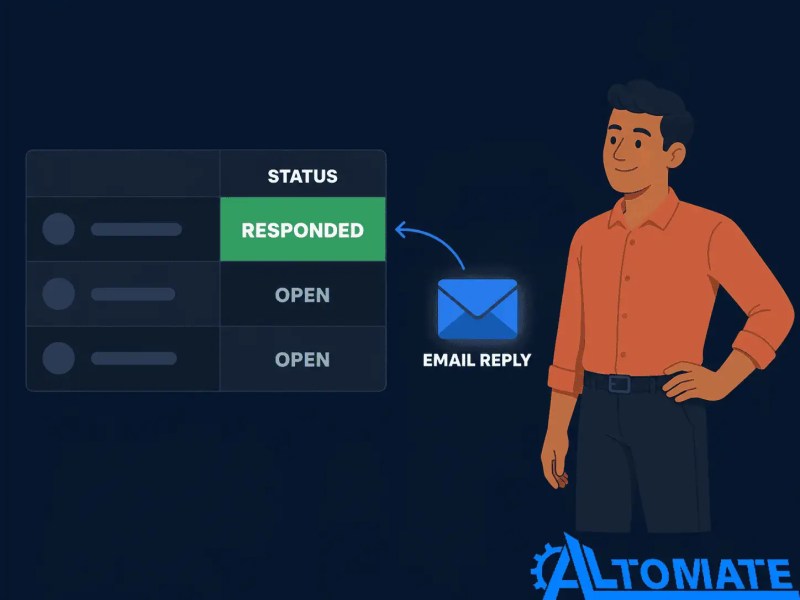
This mirrors a system we built for a professional services firm handling client request tickets through Google Docs. The tracking sheet was already in place, but status hadn’t moved past “Open” in weeks because the team was resolving requests in email threads without looping back to the sheet. Routing the reply detection through Zapier to the sheet update took one additional step in the zap — and the tracking data became usable for the first time. The document workflow automation for connected request processes solution page covers similar connection patterns.
At higher ticket volume, the sheet approach starts to show its limits: filtering, assignment views, and SLA tracking become harder to manage without additional layers. That’s a scale threshold, not an immediate problem — but it’s worth designing the column schema now so that data is portable when the upgrade happens.
Template Design That the Automation Can Actually Use
The Google Doc master template is the component most teams build once and never revisit. It also has the highest impact on whether the automation functions correctly.
Template variables must follow a consistent format that the automation can reliably find and replace. The standard pattern is double curly braces: {{ticket_id}}, {{requestor_name}}, {{priority}}. Whatever convention is used, it must be consistent across every variable in the template — no mixing of formats. One misformatted placeholder causes a silent substitution failure: the document is generated, but the placeholder text remains, and no error is thrown.
Template structure should be minimal. The document needs to convey the ticket clearly to the person receiving it — not serve as a comprehensive record. A header block with ticket metadata (ID, date, requestor, category, priority), a description section, and an action/resolution section is sufficient. Everything else is visual noise that slows down the person reading it.
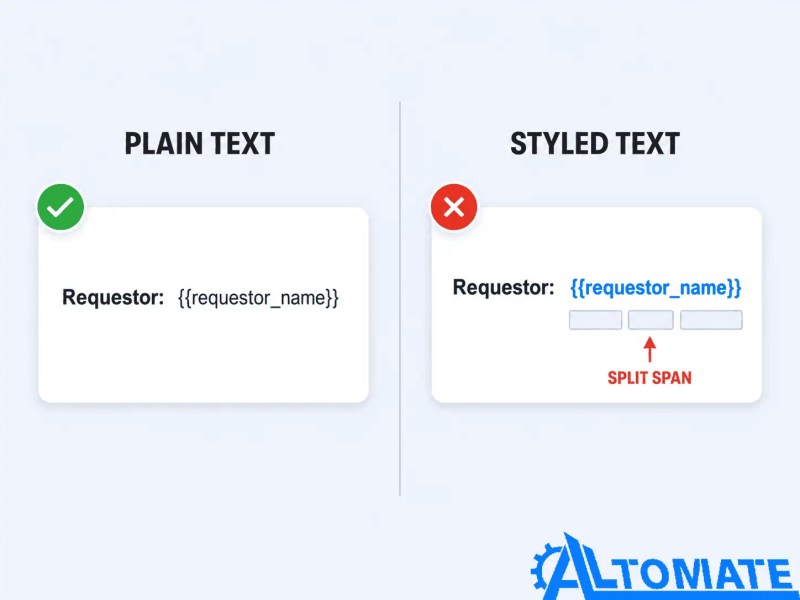
One constraint that regularly causes problems: rich text formatting in the template. If a variable is placed inside a bolded or styled text run in Google Docs, some automation platforms will fail to replace it because the variable string is split across multiple formatting spans in the document’s underlying structure. The fix is to write placeholders in plain, unformatted text and apply formatting only to the surrounding labels, not to the variable itself.
The formatting issue is easy to miss because the placeholder can look visually correct while being split into multiple text spans underneath.
The master template should live in a restricted folder with edit access limited to whoever owns the automation. When team members can edit the master, variables get accidentally deleted or reformatted, and the automation breaks without any obvious trigger. Version control for the template — keeping a dated copy whenever it’s changed — is a simple safeguard that prevents hours of debugging. The document processing automation for structured templates solution covers how template management fits into a broader document pipeline.
When to Upgrade Beyond Google Docs
Google Docs ticket automation is a valid system for teams processing a manageable, relatively consistent volume of requests where the ticket format is stable. It becomes the wrong tool under specific conditions — and recognizing those conditions early avoids building a system that needs to be rebuilt six months later.
The first signal is ticket diversity. If a team is handling five or more distinct ticket categories with meaningfully different fields, routing paths, and SLAs, the conditional logic in the automation starts to resemble a decision tree that’s difficult to maintain. A dedicated tool with native ticket type configuration handles this more reliably than a growing set of conditional branches in a Zap or Make scenario. For a broader view of which document tasks are worth automating in the first place, which repetitive document tasks are worth automating is a useful reference before expanding the system.
The second signal is multi-stage workflows. Google Docs ticket automation handles intake and routing well. It handles sequential approvals, multi-party sign-offs, or ticket escalation ladders poorly — not because it’s impossible to build, but because each stage requires additional automation steps that compound the maintenance burden. When the workflow has more than three handoff points, a document-based system is carrying weight it wasn’t designed for. The document approval workflow automation for multi-stage handoffs post covers what that structure looks like when built correctly as a dedicated system.
The third signal is reporting requirements. A Google Sheet tracking layer can produce a reasonable status view, but it has no native SLA monitoring, no aging alerts, and no assignment workload visibility without building those views manually. When management needs operational reporting from the ticket system, the sheet becomes a liability. That’s the point at which a purpose-built tool — or a CRM with ticket-like objects — handles the reporting layer more reliably than a document workflow. For teams at this stage, the approval automation for escalations and handoffs solution covers the upgrade path, and AI-powered automation services for advanced request routing covers what the next layer looks like beyond rule-based routing.
None of this means the Google Docs system was wrong to build. For many teams, it handles the majority of ticket volume well for years. The value is in building it correctly from the start so that when the upgrade happens, the data structure and intake logic are portable rather than buried in a folder of inconsistently named documents.
We’ve worked with operations teams whose entire document workflow — including ticket-style request handling — was running through Google Docs and Zapier well past what most would consider a reasonable scale, specifically because the system was designed with a clean data layer from day one. The structured tracking sheet meant the migration to a proper platform took a fraction of the time it would have taken otherwise. For similar patterns in practice, see the custom workflow automation case study for structured operations — it covers how a clean underlying data structure accelerated a system rebuild that would otherwise have required starting from scratch.
Final Answer: Google Docs ticket template automation is best for lightweight support requests, internal tickets, and operations intake workflows where a generated document is useful but a full helpdesk system is not yet necessary. The reliable structure is intake form → generated Google Doc → conditional routing → tracking sheet or CRM. The system works when the Google Doc is treated as a ticket summary, not the source of truth for status. Tracking should live in a structured sheet or CRM, routing should use controlled form fields, and the master template should be protected from accidental edits.
Need a reliable system?
Get a free business process audit — or use the automation readiness assessment and automation ROI calculator to scope the opportunity first.
Related Resources
Frequently Asked Questions
Can Google Docs actually handle ticket management without a dedicated tool?
Yes — for teams with consistent ticket types and moderate volume, a structured Google Docs workflow with a Zapier or Make automation layer handles intake, document generation, routing, and tracking reliably. The constraint is that the system requires clean template design and a separate tracking sheet. It is not a substitute for SLA enforcement, workload visibility, or multi-stage approval workflows at scale.
What’s the best way to handle ticket variables in a Google Doc template?
Use a consistent double curly brace format — {{field_name}} — and write placeholders in plain, unformatted text. Never place a variable inside a bolded or styled text run. Rich text formatting applied to the variable string itself causes substitution failures in most automation platforms, because the formatting splits the variable text into multiple underlying spans that the replacement tool cannot match as a single string.
How do you stop tickets from staying “Open” indefinitely in the tracking sheet?
Tie status transitions to workflow events that are already happening — email replies, task completions, or CRM updates — rather than relying on manual cell edits. If the resolution normally happens over email, monitor the reply-to address on the ticket notification and trigger the status update when a reply is detected. Status updates that require a separate manual step will consistently be skipped.
What causes routing to fail silently in a Google Docs ticket automation?
The most common cause is free-text routing fields where submitted values don’t exactly match the routing conditions — lowercase vs. uppercase, spelling variation, or values added to the form after the routing logic was written. Routing fields must always be enforced dropdowns or radio buttons. Any unmatched condition should route to an explicit fallback destination rather than producing no action.
When should a team move away from Google Docs for ticket management?
The upgrade triggers are: five or more ticket categories with distinct fields and SLAs, workflows requiring more than three sequential handoff points, or management-level reporting requirements that go beyond basic status filtering in a sheet. The migration is straightforward when the tracking sheet has a clean column schema — which is the main reason to design the data layer correctly from the start even if the immediate scale doesn’t require it.
About the author

Miguel Carlos Arao is the Founder & CEO of Alltomate, a Zapier Certified Platinum Solution Partner focused on practical automation systems for document generation, request intake, ticket routing, and Google Sheets-based tracking layers. The patterns in this article come directly from building and troubleshooting lightweight ticket and request workflows across client engagements in professional services operations and internal IT support teams.

Built by a certified Zapier automation partner
Explore more at
automation integration services,
document workflow automation, and
the document automation guide.