
Published on June 17, 2026
If your Google Sheets email automation is already sending duplicates, skipping rows, failing silently, or becoming hard to manage, automation and integration services for Google Sheets workflows can help redesign the system — or start with a free automation audit for broken workflow logic to identify where the trigger, sheet structure, or email logic is breaking.
Quick Answer: Google Sheets email automation works by using a trigger (new row, updated cell, or scheduled poll) to fire an email action through a platform like Zapier, Make, or n8n. The critical design decisions — deduplication, conditional branching, and error handling — determine whether the system runs reliably at scale or sends duplicates and silent failures within days of launch.
Table of Contents
- Why Most Google Sheets Email Automations Break Within a Week
- How the Trigger Layer Actually Works (And Where It Lies to You)
- Structuring Your Sheet for Automation, Not Just Readability
- Conditional Email Logic: When Branching Goes Wrong
- Choosing the Right Platform: Zapier vs Make vs n8n for This Specific Use Case
- What Happens When the System Scales
- FAQs
Google Sheets is not an email tool. It was never designed to be one. But because it sits at the center of so many business workflows — lead lists, client trackers, intake forms, invoice registers — it inevitably becomes the source of truth that emails need to fire from. The question is not whether this is worth automating. It is. The question is whether the system you build will still behave correctly in three weeks, after someone has edited a row, reordered columns, or added a duplicate entry.
Most Google Sheets email automations are built to get the first email out. Very few are built to prevent the third, fourth, and fifth from going out when they shouldn’t. This guide is about building the second kind.
Why Most Google Sheets Email Automations Break Within a Week
The failure is almost always the same. Someone sets up a Zap or a Make scenario with a “New Row in Google Sheets” trigger, maps the recipient email field to the To address, and considers the automation done. It works on Tuesday. By Friday, the same contact has received the same email four times.
The problem is not the platform. It is the assumption that a spreadsheet has the same data integrity as a database. It does not. In a database, a new record is a discrete event. In a spreadsheet, a “new row” is whatever happened to appear below the last row the platform polled — and polling windows, manual edits, row insertions above the trigger range, and imported bulk data can all produce re-triggers on rows the system already processed.
In implementations we’ve built for service businesses running Google Sheets as their intake registry, the most common deduplication failure we encounter is a missing status column. The sheet has a Name column, an Email column, and a row of data — but no column to record that the email was sent. When the workflow fires, there is nothing to write back. The next poll treats the row as new because nothing distinguishes it from one that hasn’t been processed. One column — call it “Email Sent,” write “Yes” into it on send — closes the loop. Without it, the automation has no memory.
The failure pattern is easier to see when the same row can keep triggering because the system has no processed state.

The second pattern is bulk imports. A team pastes 50 rows into the sheet at once. The polling trigger fires on each one simultaneously. If the automation has no rate control and no status-write step, all 50 contacts receive an email in under 60 seconds. Whether that is intentional depends entirely on what the sheet contains and what the email says. In most cases, it is not intentional.
The fix is not complex — but it requires treating the sheet as a stateful system rather than a list. See how we handle similar data integrity issues across connected systems in our guide on common workflow automation mistakes that cause duplicate sends.
How the Trigger Layer Actually Works (And Where It Lies to You)
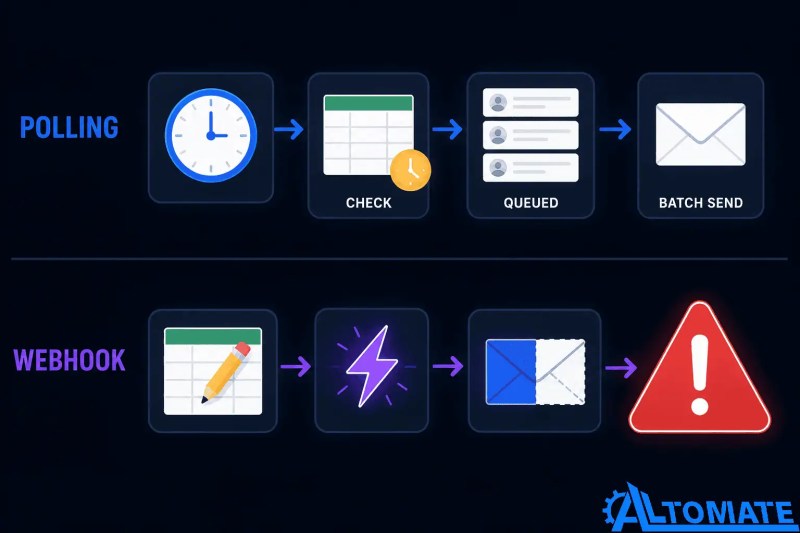
Every automation platform that connects to Google Sheets uses one of two trigger mechanisms: polling or webhooks via Apps Script. Understanding which one your setup uses — and what its actual behavior is — determines how your system responds to edge cases.
Polling triggers check the sheet on a schedule. Zapier’s minimum interval on paid plans is one minute. Make’s minimum is one minute as well. n8n on a schedule node can be set to whatever interval you configure. The critical point: polling checks for new rows since the last poll. If the system was offline, paused, or errored during a window, the next poll will catch up on everything that accumulated — which can mean a backlog of rows all triggering at once.
Apps Script webhooks fire on the actual event — a row being added, a cell being edited — rather than on a polling schedule. This is closer to real-time, but it introduces a different class of failure: the webhook fires before the row is fully written, meaning your automation reads an incomplete record. Partial data sent to an email is worse than a delayed email.
The two trigger models create different failure modes: polling can batch delayed rows, while webhooks can fire before the record is complete.
A consistent pattern we see in new setups is the assumption that “New Row” means “exactly one email per row, exactly once.” It does not. It means “one trigger per new row detected per poll cycle, assuming the row was not already seen.” The distinction matters when rows are edited, when the sheet has filtered views, or when multiple users are editing simultaneously.
The practical implication: regardless of which trigger mechanism you use, the status-write step is non-negotiable. The trigger fires the workflow. The workflow sends the email. The workflow then writes back to the sheet to confirm it sent. On the next trigger evaluation, that row is skipped because its status column is populated. That is the complete loop. For the basic implementation walkthrough, see our step-by-step Google Sheets email automation guide.
For platform-specific trigger behavior, our post on webhook-based email automation workflows covers the distinctions in more depth.
Building this for a client right now?
Request a free workflow automation audit — we’ll review your sheet structure and automation logic before you build.
Structuring Your Sheet for Automation, Not Just Readability
Most spreadsheets are designed by the person who maintains them manually. Headers are named for human readability. Columns are added when someone decides a new field is needed. Rows are occasionally merged for visual grouping. This is fine for manual use. It is the exact opposite of what an automation system needs.
Automation requires positional stability. If your Email column is column D today and someone inserts a column to track a new field next week, your automation breaks — silently. The mapping still says “column D” but column D now contains something else. The email goes to the wrong address, or to a blank field, which generates an error that may or may not surface depending on how your platform handles null values.
The difference between a human-readable sheet and an automation-ready sheet is not visual polish — it is whether the structure stays predictable enough for a workflow to trust.
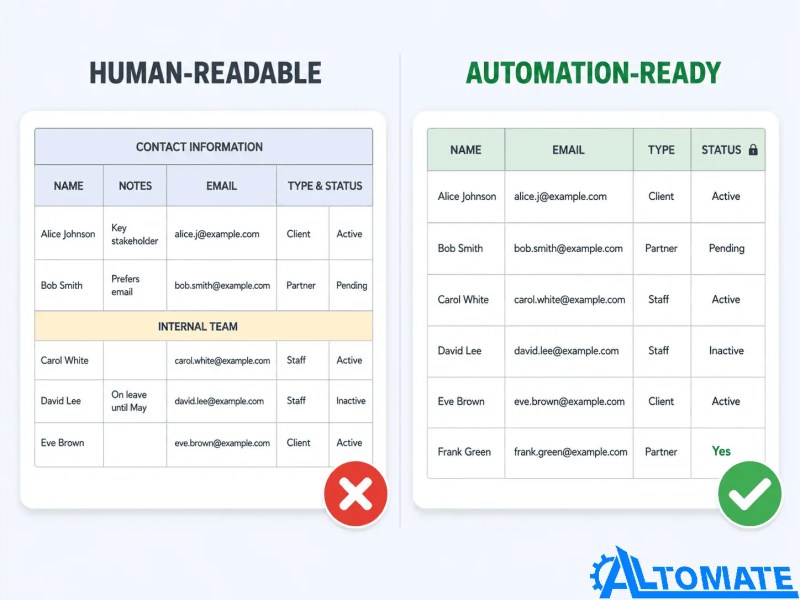
The conventions that prevent this:
- Lock column order. Automation-facing columns should be documented and protected from insertion. Most platforms map by column letter or header name — header-name mapping is more resilient, but only if headers never change.
- Isolate the status column. Reserve one column specifically for automation state. “Email Sent,” “Processed,” “Status” — the name does not matter. What matters is that it is consistently populated by the automation on success and never manually edited to a value the automation does not expect.
- Separate staging from archive. Live sheets that accumulate hundreds of rows become slow to poll and expensive to query. A pattern that scales better: the active workflow reads from a “Queue” tab, writes the status, and a second automation (or a scheduled Apps Script) moves completed rows to an “Archive” tab. This keeps the polling surface small.
- Validate at the row level, not the sheet level. If the Email column is empty for a row, the automation should skip that row or write an error status — not attempt to send to a blank address and fail silently.
This is not about over-engineering a simple setup. A sheet with 20 rows and one team member will tolerate structural looseness. The same sheet with 2,000 rows, three contributors, and daily imports will surface every structural assumption as a broken email within weeks.
Conditional Email Logic: When Branching Goes Wrong
The most requested feature after basic automation goes live is conditional logic. “Send a different email if the customer is in Trial status versus Active.” “Skip rows where the Region column says Internal.” “Send a follow-up only if the Initial Email column was filled more than 7 days ago.”
Each of these is reasonable. Where they break is in how conditions compound. A workflow that starts with two branches (Trial vs Active) often becomes a workflow with six branches within a month as the team adds exceptions. At that point, the automation logic exceeds what most non-technical operators can understand, and the first time a condition misbehaves, no one knows why.
This is what happens when conditional email logic grows without a simple control field or clear branching model.

Two patterns that keep conditional logic maintainable:
Drive branching from the sheet, not the workflow. Instead of building complex IF/ELSE logic inside Zapier or Make, add an “Email Type” column to the sheet. The person entering the row populates it with a value — “Trial,” “Onboarding,” “Renewal” — and the automation uses that value as a simple lookup to select the correct email template. The logic lives in the sheet, where a non-technical user can see and edit it without touching the workflow.
Treat missing values as explicit states. A blank in the Email Type column should not cause the automation to guess or default to a fallback template. It should write an error status and skip the row. A consistent pattern we see in client builds is that fallback behavior produces the wrong email for the wrong contact — not because the system is broken, but because it was designed to always do something rather than sometimes do nothing.
The related post on business rules automation for conditional workflows covers this decision architecture in more depth, particularly for multi-condition workflows that need to stay auditable.
Choosing the Right Platform: Zapier vs Make vs n8n for This Specific Use Case
This section is not a full Zapier, Make, and n8n comparison. It focuses only on how each platform handles Google Sheets email automation, especially triggers, branching, transformations, and row volume.
The platform choice for Google Sheets email automation depends on three variables: how complex the branching is, whether the sheet data needs transformation before the email is sent, and what volume of rows the system will process per month. Each platform also has a specific failure mode for this use case — where it works until it doesn’t, and why.
Zapier is the fastest to deploy. Its Google Sheets trigger is stable, the Gmail and SMTP actions are well-tested, and filter steps cover basic conditional logic without custom code. The constraint is task count — each row processed consumes tasks, and at volume, this becomes a pricing consideration. Zapier is well-suited for setups where the logic is linear and the row volume is predictable. See our overview of the Zapier automation platform for the broader capability picture.
Make automation platform introduces a module-based visual canvas that handles branching more cleanly than Zapier’s linear Zap structure. An iterator module can process an entire Sheet range in a single scenario run, which is useful for batch jobs. Make’s data transformation tools — aggregators, array operations — are more capable than Zapier’s for sheets that require reformatting before the email is constructed. The tradeoff is a steeper setup curve for teams without a technical lead.
n8n automation platform is the right choice when the sheet-to-email flow is one part of a larger system — for example, when rows are being written to the sheet by another automation, and the email is one step in a multi-stage process that also writes to a CRM or sends a Slack notification. n8n’s ability to run logic in JavaScript nodes makes it the most flexible option for complex data manipulation. For teams with a technical operator, it is also cost-effective at scale because task-based pricing does not apply. Our post on n8n email automation setup covers the specific node configuration for sheet-triggered sends.
The failure modes differ by platform: Zapier users hit task limits and discover the cost only after the sheet grows; Make users build clean iterator scenarios that break silently when a row has an unexpected blank field the iterator doesn’t filter; n8n users build flexible systems that become fragile when the technical operator who built the workflow leaves and no one can read the JavaScript nodes. Knowing the failure mode before you build is part of choosing correctly.
For a direct comparison of how these platforms handle conditional branching and data transformation, see our Zapier vs Make vs n8n automation platform comparison.
What Happens When the System Scales
A Google Sheets email automation built for 50 rows per week behaves differently when it is processing 500. Not because the logic changes — but because the assumptions baked into the design surface as constraints at volume.
The first constraint is API rate limits. Google Sheets API has a per-minute read quota per project. When polling intervals are short and row counts are high, the automation platform can exceed this quota, producing throttling errors that delay sends or drop rows silently. Google’s official API documentation confirms the limit is 300 read requests per minute per project, returning a 429 error when exceeded. The fix is either to increase the polling interval, batch reads rather than per-row reads, or move to an Apps Script webhook that fires on write rather than polling on schedule.
The second constraint is email deliverability. Sending high volumes of email through a Gmail account will trigger sending limits and, in some configurations, spam detection — Google’s own documentation confirms that once the daily cap is exceeded, sending is suspended for up to 24 hours, with the Google Workspace ceiling set at 2,000 messages per day. At volume, the email infrastructure needs to be separated from the personal or team Gmail account. Transactional email services — SMTP relay, dedicated sending domains — become necessary. The automation platform stays the same; what changes is the email action destination.
The third constraint is sheet performance. Google Sheets slows down noticeably beyond several thousand rows. Automation polling against a large sheet produces longer response times and occasionally inconsistent row detection. The staging/archive pattern mentioned earlier is the structural solution. Operationally, it also means the active queue never grows unbounded — which keeps both the sheet and the automation performing predictably.
At scale, the system is no longer just a sheet-to-email workflow — it becomes a quota, deliverability, and performance management problem.

Across the client work we’ve done in professional services and e-commerce, the inflection point where a manually-configured Sheets automation requires architectural review is typically around 300–400 rows per month — in our experience across these engagements, not as an industry benchmark. Below that, the basic setup holds. Above it, the deduplication logic, sheet structure, and email infrastructure all need to be evaluated together — not as individual components.
For businesses whose automation needs have outgrown a single-sheet setup, our automation and integration services for scalable workflows cover system redesigns that preserve the Google Sheets source while connecting it to more robust downstream infrastructure. We have also built systems like this for client operations at a meaningful scale — the custom workflow automation case study for high-volume data workflows shows how a more complex data-to-email pipeline was structured for a client running high-volume outreach from structured data sources.
Key Takeaway: Google Sheets email automation is reliable when three conditions are met: the trigger mechanism is understood, the sheet has a status column the automation writes back to after sending, and the conditional logic is driven by sheet data rather than buried inside the workflow. Platform choice — Zapier, Make, or n8n — matters less than the structural integrity of the sheet and the deduplication logic. At volume above a few hundred rows per month, sheet architecture, email infrastructure, and API rate management all require deliberate attention.
Need a reliable system?
Related Automation Hubs
- Business Process Automation Guide
- Zapier Automation Platform
- Make Automation Platform
- n8n Automation Platform
- Zapier Automation Solutions
- Automation and Integration Services
- AI-Powered Automation Services
- CRM Automation Services
- Free Business Process Audit
- Automation Assessment
- Automation ROI Calculator
- Free Zapier Setup
- Automation Audit Checklist
Related Guides and Comparisons
FAQs
Can Google Sheets trigger an email automatically without a third-party tool?
Yes, via Google Apps Script. You can write a script that fires on a sheet edit event (onEdit) and calls the Gmail API to send an email. The limitation is that onEdit triggers do not fire for programmatic edits — only manual ones. Google’s Apps Script documentation states this explicitly: “Script executions and API requests don’t cause triggers to run.” They also run subject to a 30-second execution limit, which introduces additional reliability constraints for production use. For anything beyond basic personal automation, a dedicated platform like Zapier, Make, or n8n is more maintainable.
What is the best way to prevent duplicate emails in a Google Sheets automation?
A status column that the automation writes to on successful send. The workflow checks this column before sending — if it contains a “Sent” value, the row is skipped. Without this write-back step, polling-based triggers will re-evaluate rows they have already processed whenever something in the sheet changes.
How do I send personalized emails from Google Sheets at scale?
Map sheet columns (First Name, Company, Plan Type, etc.) to variables in your email template. Each column value is inserted into the email body at send time, producing a personalized message for each row. For high-volume sends, route through a transactional email service rather than a personal Gmail account to avoid sending limits and protect deliverability.
Why is my Google Sheets email automation sending emails to blank rows?
The most common cause is a polling trigger that detects row additions but does not validate field values before sending. Add a filter or condition step that checks whether the Email column is non-empty before the email action runs. A second common cause is that the sheet has trailing empty rows that the platform interprets as new rows during polling.
Does row order in Google Sheets affect how automations fire?
Yes, for polling-based triggers. Most platforms detect “new rows” by comparing the current last row to the last row seen in the previous poll. If rows are inserted in the middle of the sheet rather than appended to the bottom, polling triggers may not detect them at all. For mid-sheet insertions, an Apps Script webhook or a different trigger condition (such as a cell value change) is more reliable.
About the author

Miguel Carlos Arao is the Founder & CEO of Alltomate, a Zapier Certified Platinum Solution Partner focused on Google Sheets email automation systems, including polling trigger design, status-write deduplication logic, and sheet-to-email pipeline architecture. The patterns in this article come directly from building and troubleshooting Google Sheets email automation systems across client engagements in professional services and e-commerce operations.

Built by a certified Zapier automation partner
Explore more at
Alltomate’s automation and integration services,
the business process automation guide, and
the automation audit checklist.